
Introduction
AI tools like Claude and ChatGPT are designed to read documents, follow instructions, and produce files automatically. In this context, they act as a fast and reliable assistant for a task that would otherwise take significant manual effort: Filling in Excel templates from retailers with your product data from Delogue.
The process is straightforward. You export the requested product data from Delogue, fill in a short form called the ‘AI Prompt’, and send everything to the AI through a standard chat interface. The AI-tool reads your data, maps it to the retailer's template, and returns a completed Excel file ready to share.
No technical expertise is required. Even if you are completely new to AI, this guide will walk you through every step of the process with ease.
Table of Contents
Before you start
For the AI tool to be able to fill in your retailer's template accurately, your product data must be complete and up to date in Delogue. The AI tool can only work with data that is already in Delogue.
You will also need to access two reports in Delogue: the Style Custom Report and the Item Custom Report. If you cannot find them on your platform or don’t have access to them, follow the setup guides on the knowledge base.
Retailers typically identify your products either by their EAN codes or by their SKUs. Both can be managed in Delogue under the SKUs tab within your style detail page. Make sure this information is completed before you begin, as the AI tool relies on it to match your styles to the correct rows in the retailer's template. Click here for more information.
How it works - Getting the overview
- Export your product information from Delogue as an Excel-file
- Open the AI Prompt document and fill in the required information and map your data, save either as a PDF- or Word-file.
- Open Claude or ChatGPT - It is important to use one of the recommended AI tools, as we cannot guarantee optimal results with other platforms. With your AI tool open, upload all exported files from step 1, then upload the AI Prompt from step 2, lastly, upload the template file from your retailer. The AI tool then fills in the retailer template automatically.
- Download the completed file and send it to your retailer.
With this overview in place, let’s dive into the detailed guide, which will walk you through each of these steps.
1. How to export your relevant product data
Retailer templates typically require a broad range of product data that is stored across different areas in Delogue. Because of this, exporting all the necessary information often requires multiple steps rather than a single action. For instance, if a retailer requests style details, fabric compositions, and certificates, you would need to pull from three distinct areas: the Style Custom Report for core style details (later named Export 1), the SKU/Barcode export for identification of styles (later named Export 2), and the Items section for compositions (later named Export 3). The number of exports required will ultimately depend on the specific data points requested by your retail partner.
Note that the number of styles and items that can be included in a single export is limited. To keep your exports manageable and avoid hitting this limit, we recommend applying a season filter in your report before exporting. This will narrow down your results to the current season only and ensure the export runs smoothly.
1.1 Export your Styles information (Export 1 & Export 2)
For: main item · style custom fields · care instructions · supplier country · SKU/barcodes · compliance
Usually, you would receive an Excel file template from your retailer, requesting certain information to be filled out for certain styles.
The plan is to pull the necessary data from Delogue with the help of different reports and use the AI to merge everything into the final retailer template.
- Go to Report > Style Custom Report
- Begin by generating a Style Custom Report, selecting the relevant Brand and Season. Next, cross-reference the retailer's template and select the corresponding columns to ensure all required data, saved as style data in Delogue, is included in your export.
- Once your report is containing all information, click Export to Excel and choose your exporting options.
New to the Style Custom Report? Follow the guide on our knowledge base here.
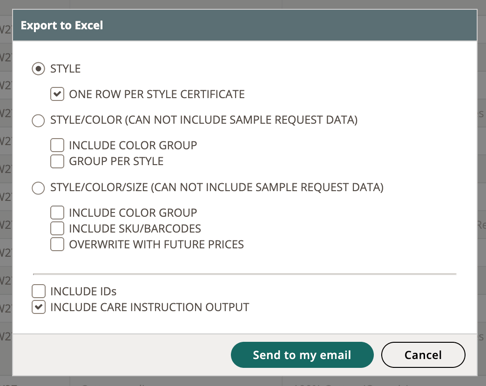
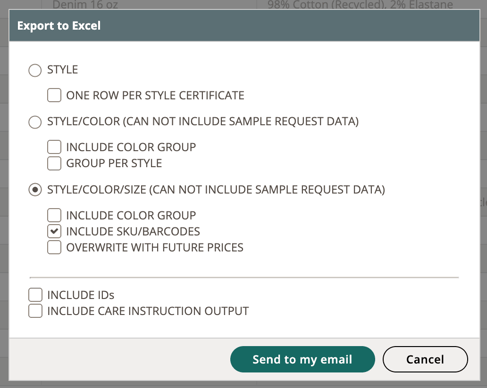
Depending on your retailer’s request, you will have to export your Style Custom Report twice. Use the table below to see which options to select each time. In case your retailer asks for something not covered in the table, see the full list of export options here.
| If your retailer asks for... | You need... | |
| Export 1 |
Certifications (GOTS, GRS,...) & Care Instructions |
ONE ROW PER STYLE CERTIFICATE & INCLUDE CARE INSTRUCTION OUTPUT |
 |
||
| Export 2 | EAN codes, barcodes, SKU,... | INCLUDE SKU/BARCODES |
 |
||
NOTE: in case you do not have the SKU/Barcodes in Delogue, it won’t be possible for you to pull the Export 2.
Save your Style Export(s) and name them ‘Export 1’ and ‘Export 2’, respectively.
1.2 Export your Item information (Export 3)
For: outer fabric · lining · inner fabric · compositions · packaging · recycled content
Why this needs a separate export? Component data doesn’t live on the style itself; It lives on the Items attached to the style (the individual materials, fabrics, zippers, buttons, hangtags,...).
This data can be pulled with the Item Custom Report.
1. Go to Report > Item Custom Report
2. Begin by generating an Item Custom Report, selecting the relevant Brand. Next, cross-reference the retailer's template and select the corresponding columns to ensure all required data, saved as item data in Delogue, is included in your export.
NOTE: Since your Item library may be extensive, we recommend applying specific filters to your report, ensuring that the export remains manageable and contains only the data you need.
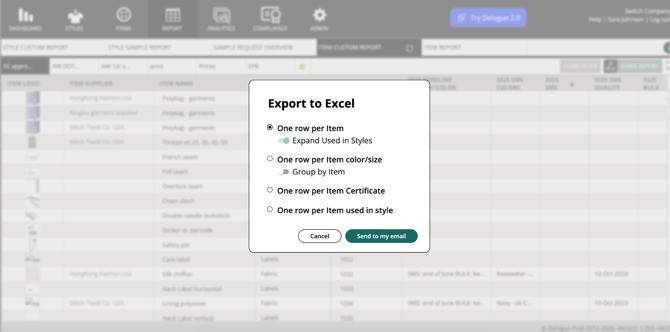
3. Once the report contains all the information, but only the information needed, click Export to Excel and choose the exporting option ‘One row per Item’. Make sure ‘Expand Used in Styles’ is ticked on as well. This is the key setting: It links each item to the belonging style(s), which is important information so that the AI tool can link the items to the styles.
New to the Item Custom Report? It works slightly differently than our style reports. We recommend starting with our Knowledge Base guide to get up to speed.
Save your Item Export and name it ‘Export 3’.
2. Fill in the AI prompt template
Now that you have exported all relevant Style and Item data from Delogue, we need to adjust the AI prompt by mapping our data.
An AI prompt is the command we give to the AI tool, so that it knows what needs to be done and how; Think of an AI prompt as a project brief. It provides the AI with the necessary context, instructions, and goals so it can deliver exactly the result you’re looking for.
Delogue has prepared the basic AI prompt for you. The prompt is divided into two sections: User-Defined Information, where you will input your specific details and map data, and Core Instructions, which are pre-configured for the AI. Please follow our guide to update the required fields (that are marked in yellow), but ensure the core instructions remain unchanged to maintain accuracy.
CLICK HERE TO DOWNLOAD OUR AI PROMPT
Open the downloaded AI prompt document and follow the instructions there, below, you can find examples on how the adjusted AI prompt potentially will look like.
Keep on reading below to get guidance and examples, in combination with filling the AI prompt document.
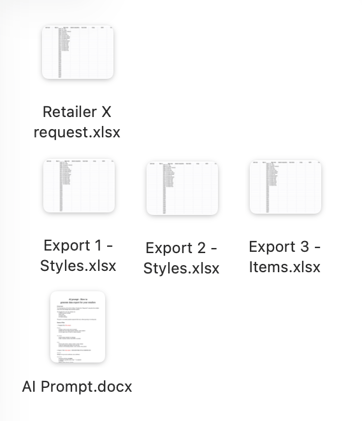
You should now have at least one (potentially two) Style exports, one Item export, your retailers request and the AI prompt document downloaded:
In your AI prompt document → 1. Name your files
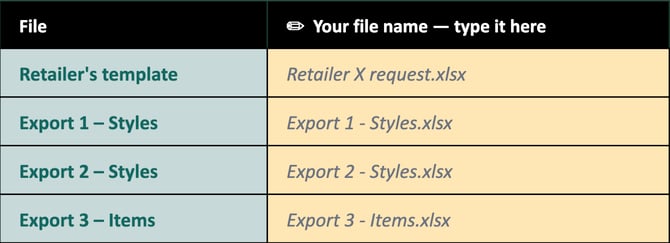
Firstly, you are asked to ‘name your files’ in the AI prompt document. This is important so that the AI tool knows where to find information.
Based on the example folder above, your adjusted AI prompt would look like this:
In your AI prompt document → 2. Match the columns
Then, you are asked to ‘match the columns’. As the information is potentially stored under different names in Delogue than what your retailer is asking for, we need to map the data so that the AI tool knows where to pull the data. For example, your retailer might ask for ‘Material composition’ which you have stored in Delogue under ‘Main Item Composition’. In this step, we are drawing the connection between these two namings.
Note, only fill in a row if the column name in the retailer’s template is different from what it’s called in your Delogue export. The AI will match identical or similar names automatically.
While the initial mapping requires a bit of time, it’s a one-off task. Once established, you can reuse the same configuration for future projects with only minor adjustments as needed.
Here is an example of what this might look like:
Common Delogue column names
|
Column name in retailer’s template |
Column name in Delogue export |
How to fill in the key account template (optional) |
|
EAN code / Barcode |
BARCODE |
|
|
Style number / Style ID |
STYLE NUMBER |
|
|
Color / Colour name |
STYLE COLOR NAME |
|
|
Color code |
STYLE COLOR CODE |
|
|
Season |
SEASON |
|
|
Product name / Description |
STYLE NAME |
|
|
Wholesale price |
WHOLESALE PRICE |
|
|
RRP / Retail price |
RRP |
|
|
Country of origin |
COUNTRY OF ORIGIN |
|
|
Outer fabric / Shell composition |
ITEM COMPOSITION |
Define based on category of item or name |
|
Lining composition |
ITEM COMPOSITION |
Define based on category of item or name |
|
Care instructions |
CARE INSTRUCTIONS |
|
|
GOTS / GRS / OCS / Oeko-Tex… |
Certification name (e.g. GOTS) |
Yes/No |
|
Contains at least 50% recycled |
ITEM COMPOSITION |
Yes/No - auto-detect from item composition |
This list is only an example but covers some common columns retailers request. Your retailer may require different data or use different names — copy them exactly as they appear in the template from your retailer.
The right column is used to specify the format you want the template to be filled in. For example, for a column in the retailer’s template called GOTS, you might want a yes/no answer as shown above, or you might want the license number, this can be specified here.
In case your retailer is asking for information that you do not have in Delogue, you do not have to fill it in the table.
In your AI prompt document → 3. Anything else?
This is optional and only needs to be filled if you have a special request like for example to ‘use EUR prices only’ or ‘Output language: French’.
Simply leave this empty if you have nothing to add.
After having everything filled out, save your AI prompt document, either as a word document or a PDF.
4. How to use the AI tool
An AI tool is a type of software that can read documents, understand written instructions, and produce files automatically. You interact with it through a simple chat interface, the same way you would send a message to a colleague. You describe what you need, attach your files, and the AI does the work and sends back the result.
Disclaimer: Before you start uploading a lot of your company and style data to an AI tool, make sure you are using a company account so your data isn’t shared.
For this workflow, we recommend using one of the following two tools:
- Claude (claude.ai) is developed by Anthropic and is particularly reliable for structured data tasks such as filling in Excel templates.
- ChatGPT (chatgpt.com) is developed by OpenAI and is widely used across industries for a broad range of tasks. Note that you need to be a 'Business' user in order to be able to upload multiple documents.
Step by step
- Go to claude.ai or chatgpt.com and start a new conversation.
- Click the paperclip icon 📎 and upload your exported files, the retailer’s template, and the AI prompt
- Press Send. Wait for the AI to reply with your completed file.
Something didn't look right?
|
Problem |
What to do |
|---|---|
|
Many red or empty cells |
The information the AI is looking for is most likely missing from your export files. First, check that the data is entered in Delogue for the relevant styles. Then make sure the corresponding column is selected in your Custom Report before exporting. If the data is not in Delogue at all, it will need to be added there first before you can export and use it here. |
|
EAN / barcode column is empty |
In Export 2, make sure you select INCLUDE SKU/BARCODES before exporting. The file will be sent to your email. Check your inbox to download it. Again, if this data is not in Delogue at all, you will not be able to export it. |
|
Care instruction column is empty |
In Export 1, make sure you ticked INCLUDE CARE INSTRUCTION OUTPUT before exporting. The file will be sent to your email. Check your inbox to download it. |
|
The AI says it cannot find a column |
The Delogue column name in your data mapping in the first point in the ‘AI prompt document’ must match exactly what appears in your export file's header row. |
|
The AI produced nothing or returned an error |
Make sure all your export files and the retailer’s template are uploaded. In Claude: Use the paperclip icon. In ChatGPT: Use the attachment icon. Then upload the AI prompt as a file, and press send. |
|
Some rows are highlighted in orange |
Those rows have EAN codes that couldn't be found in Export 2. Check that those styles were included in your export and that the EANs match exactly. |