
Introduction & best practice
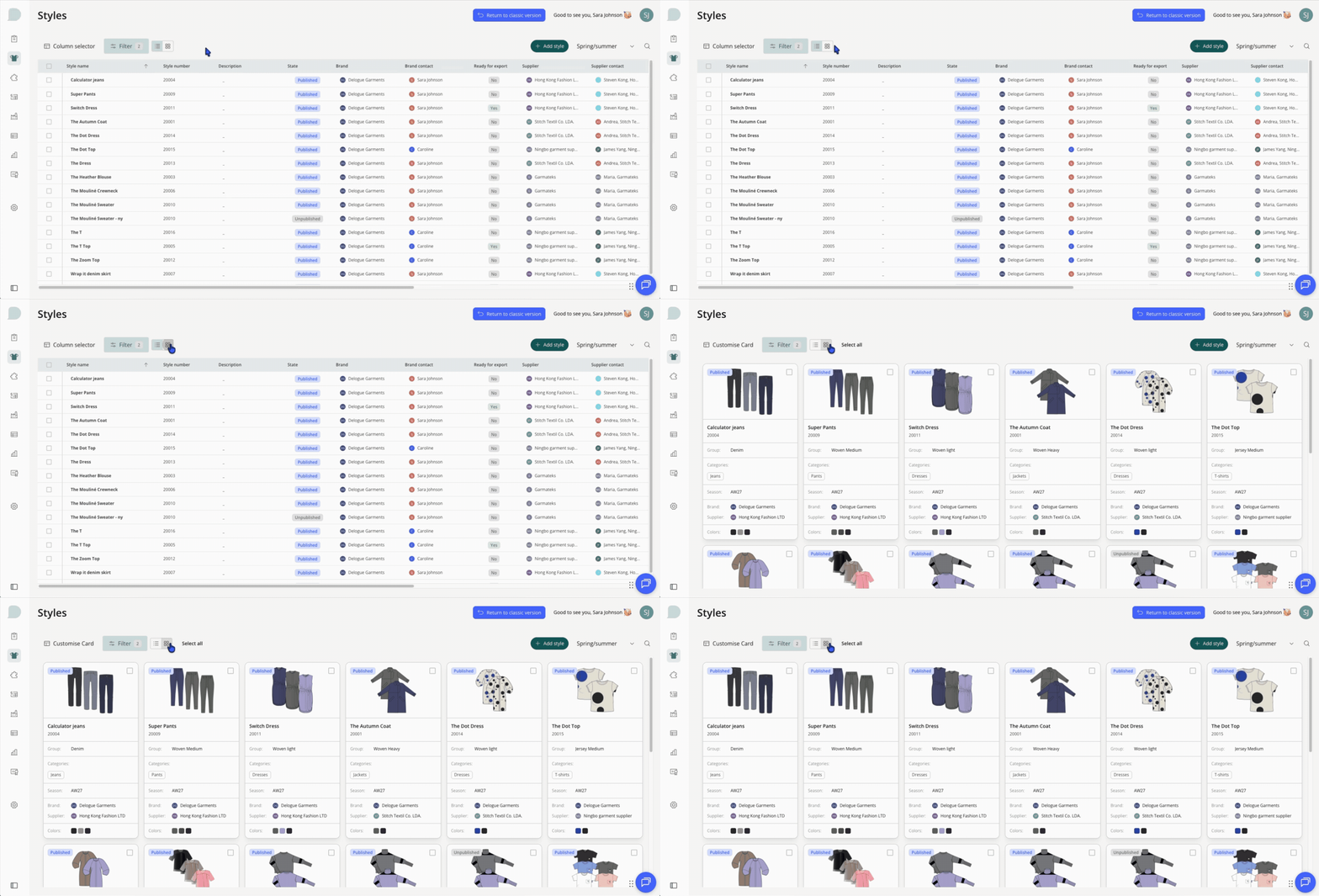
As an addition to the Style Table view in Delogue 2.0, you also have the option to switch your style view to the Style Tile view for a more visualized overview.
The Tile view show not only the Style Thumbnail (image) but also some main information about the style, for easy overview.
TIPS: If you are not familiar with the functionality of the Style Table View, we recommend you to start by reading this article: Table View & Filters
Table of content
The Tile View
Navigate to Delogue 2.0 > Styles
The default view under the 'Styles' module, is the Table view — We recommend that you start by setting your filter here, to focus on the relevant styles. Learn more about the filter options here.
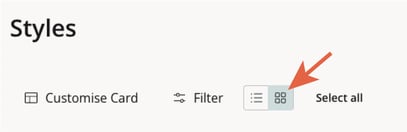
- Click on the Tile icon to switch view
- The view will keep the same style filtration as shown on the Table view
Customise the style card
Once you have switched to the tile view, you can start customising your style cards.
NOTE: The selections of fields done in the style card does not affect any column selections in the table view. These views are independent in terms of data fields.
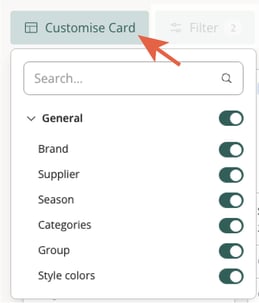
- Click on the 'Customise card' to adjust the data shown in each style card
- Use the toggle on/off on each of the available fields
Bulk Edit
You can also perform bulk edits to your styles using the tile view.
- Select the style using the check-box in the right corner
- Once you have selected your styles - click on the edit pin
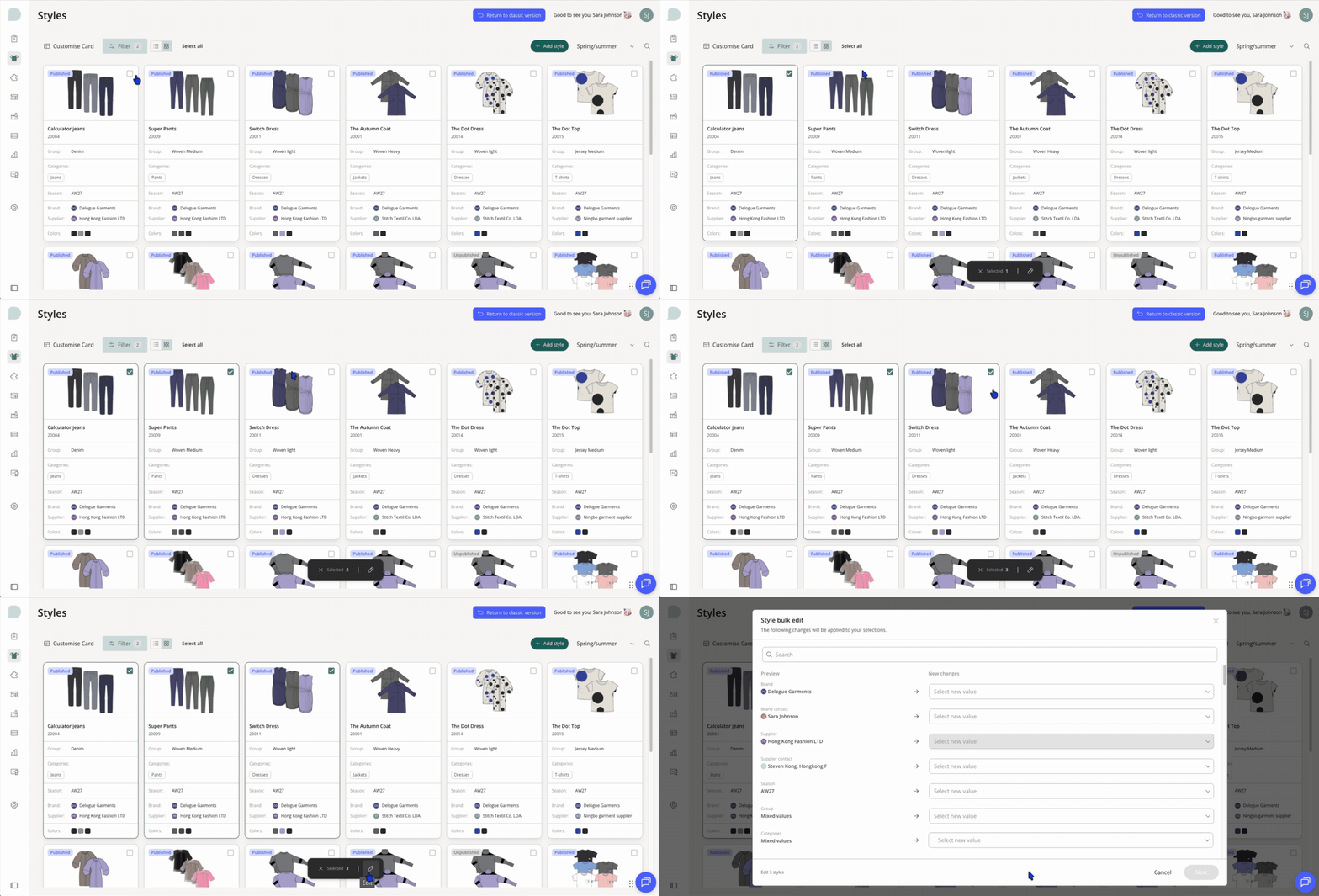
- Make the needed changes and save your changes.
INFO: To learn more about the bulk edit, please read this article: Bulk Edit