
Introduction & best practice
Bulk edit allows you to update field values across multiple items or styles in a single action — without opening each record individually. It is ideal updating brand contacts, setting categories, or editing custom field values across a large selection. All changes are confirmed before they are applied, and every edit is logged automatically for full traceability.
Table of contents
Video guide
Before you start
- The Bulk Edit feature is only available in Delogue 2.0
- To access the 'Bulk edit' action, you must have the 'Batch Modifications' role assigned to your user. Without this role, the edit option will not appear in the action bar. To learn more about assigning user roles, click here.
- The 'Ready for Export' column in the table view is only visible to users with the 'Integrator' role.
- Access is limited to Company Admin and Company User roles.
Suppliers cannot view or edit records using bulk edit.
Bulk edit your Styles
Navigate to: Styles
- Use filters to narrow down the list to the records you want to edit — to learn how to work with filters and the table view, see Table view and filters
- Select the records you want to edit using the checkboxes on the left side of the table
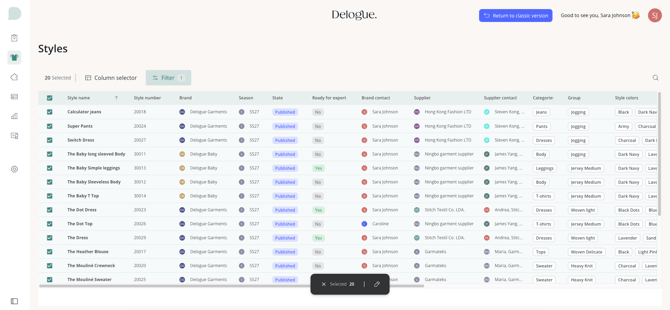
NOTE: It is not possible to select styles in the states Delivered, Cancelled, or Deleted.
If you have selected any of these, they will automatically be deselected when you continue
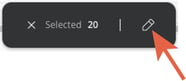
- An action bar appears at the bottom of the screen — click the edit option
- A modal opens displaying all editable fields for your selection.
In each data point, you will be able to see a preview of the existing data on the left hand side and on the right hand side you will be able to add new values. - Make your selection of new values — fields showing 'Mixed values' indicate the selected records currently have different values for that field
- You can use the search field to find specific fields you would like to edit.
E.g. search 'Categories' if you want to update the categories for the selected style
- Click 'Next' to review the planned changes before they are applied
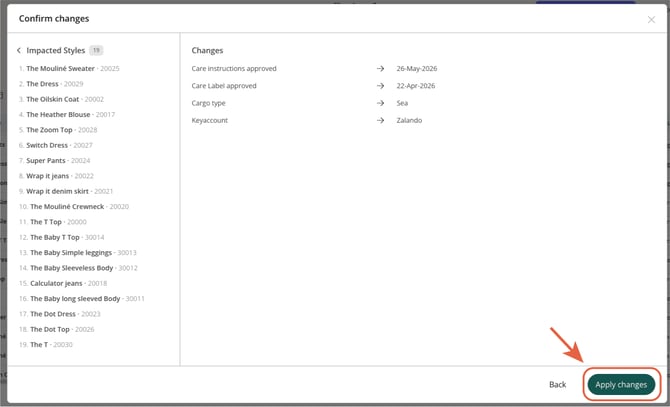
- A 'Confirm changes' overview appears, listing all affected records and the specific field changes
- Click 'Apply changes' again to confirm and save the changes
After saving, each affected record receives an audit log entry recording the field name, old value, new value, user, and timestamp. Logs can be found on the individual Item page under the Communication tab.
NOTE: If any Custom Field are linked to specific Brands, Groups or Categories it is only possible to bulk edit these fields if all the selected styles matches the criteria.
Bulk edit your Items
Navigate to: Items
- Use filters to narrow down the list to the records you want to edit — to learn how to work with filters and the table view, see Table view and filters
- Select the records you want to edit using the checkboxes on the left side of the table
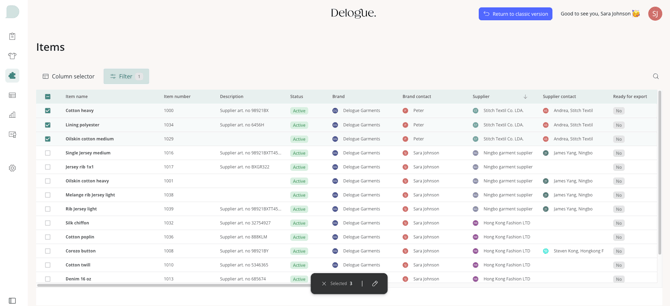
- An action bar appears at the bottom of the screen — click the edit option
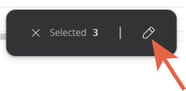
- A modal opens displaying all editable fields for your selection.
In each data point, you will be able to see a preview of the existing data on the left hand side and on the right hand side you will be able to add new values or remove existing values. - Make your selection of changes — fields showing 'Mixed values' indicate the selected records currently have different values for that field
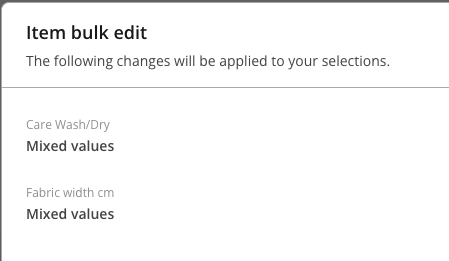
- Click 'Next' to review the planned changes before they are applied
- A 'Confirm changes' overview appears, listing all affected records and the specific field changes
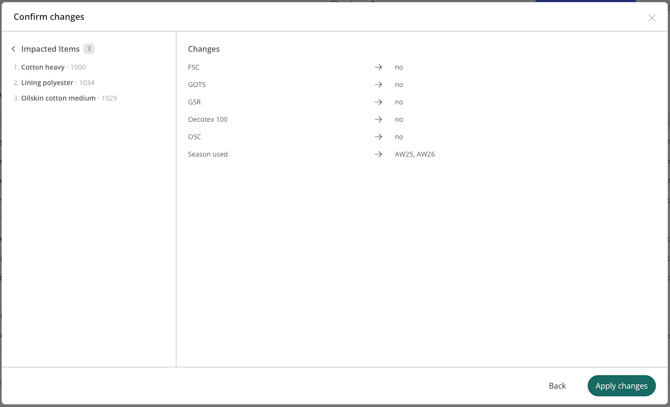
- Click 'Apply changes' again to confirm and save the changes
After saving, each affected record receives an audit log entry recording the field name, old value, new value, user, and timestamp. Logs can be found on the individual Item page under the Communication tab.
Limitations
Since this is the first release of the bulk edit feature, there are some known limitations. In future development the feature will be expanded with multiple extra functionalities, so keep an eye out for updates on this.
Selection limits
| Object type | Maximum selection |
|---|---|
| Items | 50 at a time |
| Styles | 200 at a time |
When the limit is reached, the Edit button in the action bar becomes disabled. Reduce your selection to proceed.
Fields that cannot be edited in bulk
The following fields are excluded from bulk edit:
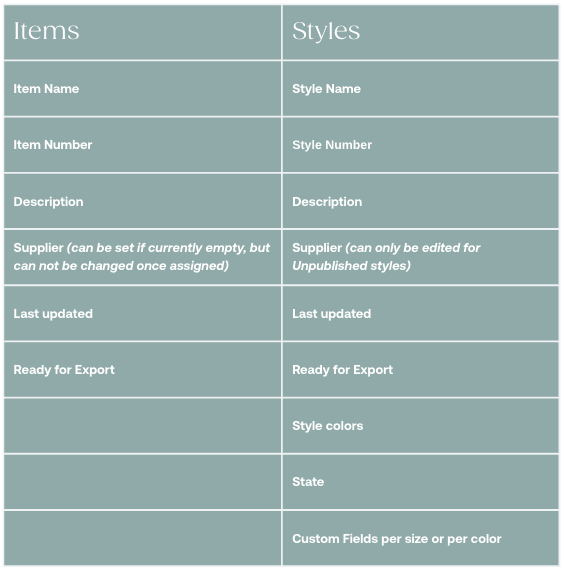
NOTE: Styles with the status Delivered, Canceled, or Deleted cannot be edited in bulk.
Field-level rules
Supplier Contact:
- The Supplier Contact field is only editable when all selected records share the same Supplier
- If records have different Suppliers, the field is displayed but disabled
- Selecting a new common Supplier within the bulk edit modal will enable the Supplier Contact field
Hierarchy custom fields (parent/child):
- The child field is disabled when selected records have different Mother values
- The child field is also disabled when the Mother field is empty across the selection
- To edit a child field, ensure all selected records share the same Mother value