
Introduction
To gain the benefits from the unified supplier portal account, you need to help convert your existing suppliers in the Delogue Legacy platform, to the new Delogue 2.0 supplier portal.
This conversion process connects your existing supplier data to the supplier's unified portal account. Once converted, all users and data are preserved, and your supplier gains access to enhanced features like supply chain mapping and the Supplier Module.
Table of contents
- Before you start
- Understanding the conversion process
- Step 1: Request supplier signup
- Step 2: Receiving the invite code
- Step 3: Initiate the merge request
- Step 4: Supplier approves the merge
Before you start
- Make sure to read the introduction to the supplier module, to understand the impact of converting your legacy suppliers.
- Make sure the 'Company Admin’ role is assigned to you as a user; otherwise, it will NOT be possible to access the supplier conversion feature.
- Identify which legacy supplier you want to convert.
It's recommended to start with your most active suppliers. - Ensure the Supplier Portal feature is enabled on your platform. If you do not see the 'Convert to Supplier Portal Account' button in your suppliers list, contact your administrator or Delogue support.
NOTE: Each supplier only needs to create one Supplier Portal Account. They can use the same invite code for all their brand customers.
Make sure that only one supplier user per supplier organization reaches our to you with an invite code.
Understanding the conversion process
The conversion from a Legacy supplier to Supplier Portal Account involves four main steps.
Who it involves:
- The Supplier Admin - who creates the new Supplier Portal Account and receives a unique portal code.
- A Brand Admin - who will initiate the account merger process between the new portal account and the existing supplier data in your system
The process flow:
- The supplier creates a Supplier Portal Account and receives invite code
- The brand admin collect the invite code and initiate a merge request
- Supplier receives notification, reviews users, assigns roles and brand access and approves
- System automatically transfers all users and data
NOTE: This process cannot be reversed once the supplier approves the merge.
Brand and supplier collaboration - Video guide
Step 1: Request supplier signup
Contact your supplier and ask them to create a Supplier Portal Account.
NOTE: It is important that only one supplier contact user register for the supplier portal.
Your supplier only needs to sign up once, even if they work with multiple brands in your organization. The same invite code can be used for all brands.
| To: Supplier contact user |
| Subject: Convert to the Delogue Supplier Portal |
|
Hello, We are transitioning to a new supplier portal system in Delogue PLM. This will allow you to start managing your subsupplier library directly in Delogue. Please make sure that only one user within your organization register for the supplier portal account, to initiate the merge process. To continue working with us, please create a Supplier Portal Account by following these steps:
This new account will allow you to manage all your brand customer relationships in one place and access new features. Please let us know if you need any assistance. You can learn more about this new feature through this link: https://knowledge.delogue.com/supplier-module Kind regards
|
Step 2: Receiving the invite code
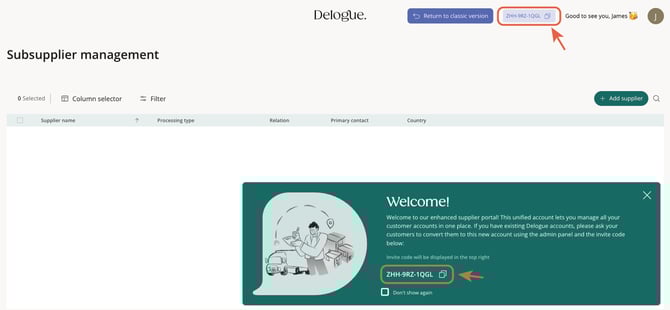
After your supplier creates their Supplier Portal Account, they will receive an invite code. Ask your supplier to send you this invite code. The format looks like this: X45-345-0912
Where suppliers can find their invite code:
- In the welcome message after account creation
- In the top right corner of their screen next to their name
The supplier's view
Step 3: Initiate the merge request
-
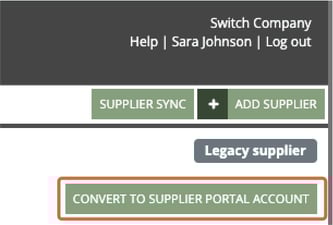
Navigate to: Admin > Suppliers
-
Locate the legacy supplier account you want to convert
-
Click 'Convert to Supplier Portal Account'
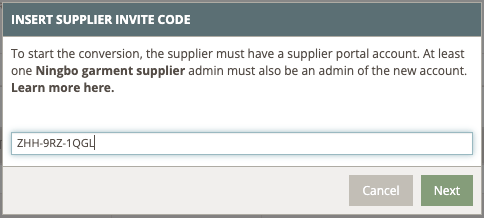
A popup window will appear:
- Enter the invite code provided by your supplier in the text field
- Click 'Next'
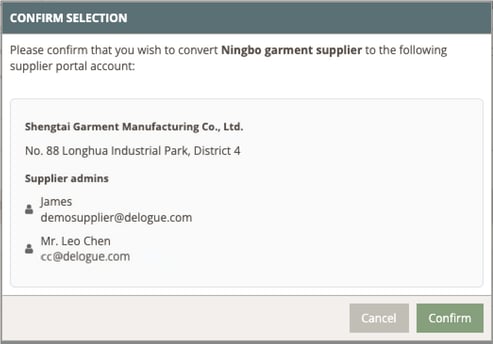
The system will validate the invite code and fetch the supplier's portal organization details.
A confirmation popup will appear showing:
- The supplier organization name
- The supplier's address
- A list of supplier admin users who will receive the merge request notification
- Review the information to confirm it's the correct supplier
- Click 'Confirm' to send the merge request
What happens next:
The merge request is sent via email to all Supplier Admins in the supplier's portal account. The legacy supplier label changes to 'Supplier Portal Account (pending)' in your Admin section.
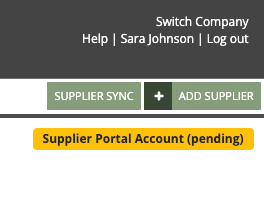
NOTE: You cannot initiate another merge request for this supplier unless the current request is rejected.
Step 4: Supplier approves the merge
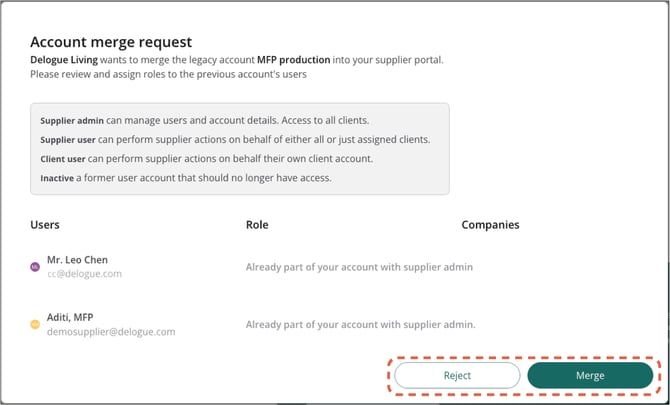
After you initiate the merge request, the supplier receives an email notification with a link to review the merge request.
What the supplier sees:
- A list of all users from your legacy supplier account
- Options to assign roles (Supplier Admin or Supplier User) to each user
- Ability to grant brand company access to Supplier Users
(If they are working with multiple brand companies) - Options to approve or reject the merge
The supplier's view
If the supplier rejects the merge
- You will receive an email notification
- The legacy supplier label returns to 'Legacy Supplier'
- The 'Convert to Supplier Portal Account' button becomes visible again
- If this was done by mistake, you can initiate a new merge request once issues are resolved
INFO: Stay in communication with your supplier during this step to ensure they understand the process and approve the request promptly.
Once the supplier approves the merge
Approval of the merge, will result in the following:
- User migration - All users from your legacy supplier account are transferred to the supplier's portal account
- Data updates - All references to styles, items, compliance, and other data are updated to point to the new supplier organization ID
IMPORTANT: If the supplier organization name was changed during the merge, the name of the supplier on your platform will be updated with the new portal organization name.
All styles and items associated with the supplier, will be updated as well.
- Label update - The supplier label in your Admin section changes from 'Legacy Supplier' to 'Supplier Portal Account'.
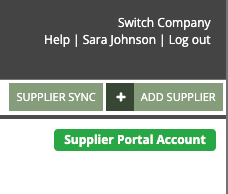
Email notifications will be sent to:
- The brand admin who initiated the merge request
- All supplier admins in the supplier's portal account
What you can still do
- View and edit brand-specific supplier fields including:
- Supplier ID
- Currency
- VAT Number
- Terms of Delivery
- Terms of Payment
- Determine whether they are a style supplier or item supplier
- Brand access controle of each supplier user.
What you can no longer do
- Add or remove supplier users in the portal overview (the supplier now manages their own users but you can still manage what brands the supplier users have access to)
- Edit supplier-specific fields including:
-
- Company name
- Address (incl. Country)
- Phone number
- Website
NOTE: The supplier manages their own company information from their Supplier Portal Account. If you need them to update details, contact the supplier directly.
Data preservation
Your workflows and processes continue without interruption after the merge and all existing data is preserved during the merge:
- Styles assigned to the supplier
- Items assigned to the supplier
- Sample requests
- Messages and communication history
- Compliance records
- Audit logs
- Supplier contacts on styles
(Contact name might be updated to the portal name - read more here)
IMPORTANT: If there is a difference in the names of your legacy supplier users and the portal supplier users, it will overwrite with the portal user names.
The names will update directly in the style and item headers, the compliance header and in any log changes.
Troubleshooting
The invite code is invalid or not found
Possible causes:
- The supplier has not completed the signup process
- The invite code was typed incorrectly
- The supplier's portal account is not active
Solutions:
- Verify the invite code with your supplier
- Ask the supplier to confirm that they completed signup and received the invite code
- Check for typos or extra spaces when entering the code
- Ask the supplier to log in to their portal and copy the invite code again
The 'Convert to Supplier Portal Account' button is not visible
Possible causes:
- You don't have the 'Company Admin’ role
- The Supplier Portal feature is not enabled for your account
- The supplier has already been converted
Solutions:
- Check your user roles in Admin > Company Info
- Contact your system administrator to enable the Supplier Portal feature
- Check if the supplier label shows in green with 'Supplier Portal Account'
Users are missing after the merge
Possible causes:
- Users were inactive in the legacy account
- The supplier marked users as "skip" during the approval process
- Users were client users (your employees, not supplier employees)
Solutions:
- Check the merge approval details with the supplier
- Client users may have been skipped - confirm with the supplier
- The supplier can add new users from their Supplier Portal Account if needed