
Introduction
The Supplier Portal is a unified account system that allows you to manage relationships with all your brand customers through a single login. This guide will walk you through the complete process: activating your portal account, signing up to the supplier module, requesting your customers to merge their data, and accepting merge requests.
Brand and supplier merge collaboration
Table of contents
- Before you start
- Registering a Supplier Portal account
- Merging Legacy Supplier Accounts
- Accepting the merge request
- After merge completion
- Multiple Brand customers
Before you start
Watch this short introduction video:
- Your brand customers should ask you to sign up for the new Supplier Portal and guide you through this process.
- You will need access to your email to receive and enter verification codes.
- Prepare your company name and basic company information.
INFO: If you already have login credentials for Delogue, you can reuse them during signup.
Registering a Supplier Portal account
When creating your new unified supplier portal account, you need to make sure that only 1 user within your organization creates the supplier portal. This will ensure that your organization is only created once.
Once the customers starts merging your legacy accounts, your supplier colleagues will automatically gain access to the supplier portal account.
Start the signup process
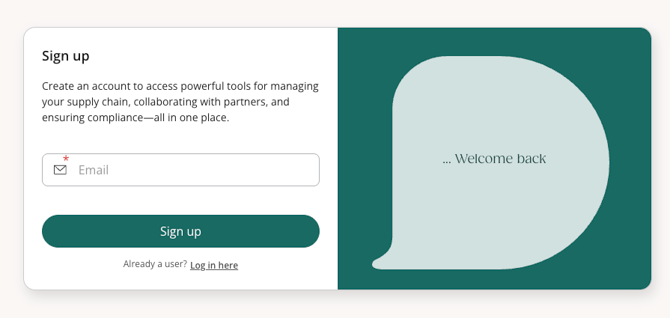
- Navigate to: https://beta.my.delogue.com/supplier/signup
- Input your email address
- Click ‘Sign up’
- You will receive a One-Time Password to your inbox.
Verify your email with One-Time Password
- Check your email inbox for a message from Delogue with the subject "Verify Your Email"
- Copy the 6-digit code from the email
- Enter the code on the verification screen
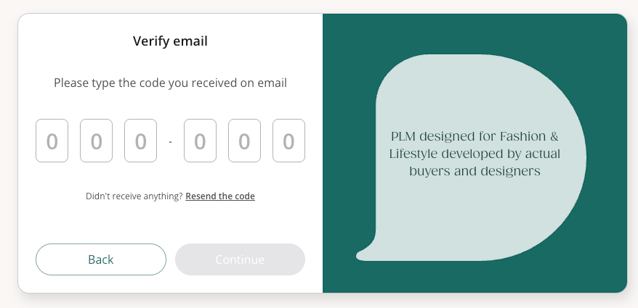
- Click 'Continue'
NOTE: You have 3 attempts to enter the correct One-Time Password. If you need a new code, click 'Resend the code'.
Create your supplier organization
After verifying your email, you will see one of these screens depending on your situation:
Scenario A: You are a new user
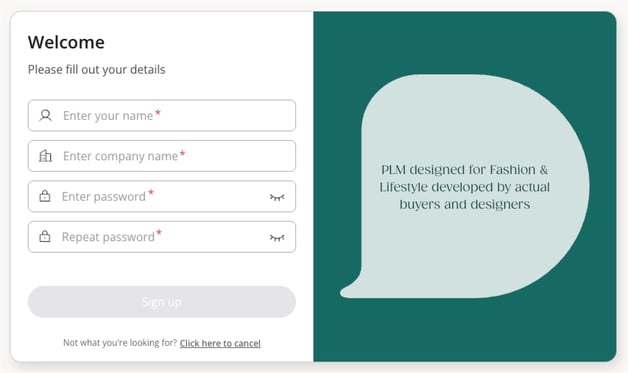
- Enter your Name
- Enter your company name
- Create a password
- Confirm your password
- Click 'Sign up'
Scenario B: You already have a Delogue account
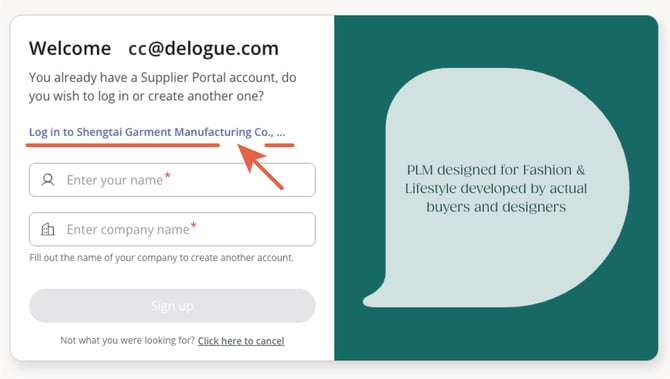
- Click on the link showing your existing Supplier Organization
If you want to create another portal account:
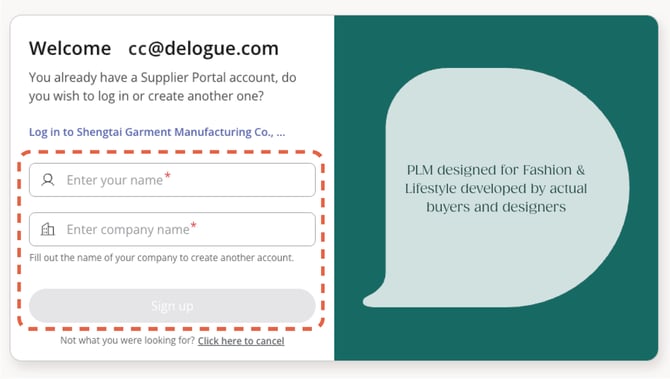
- Enter you name
- Enter your company name
- Click 'Sign Up'
INFO: The system will automatically create your supplier portal organization and generate a unique invite code (example: X45-345-0912)
The Supplier Module
Once your supplier portal account is created, you automatically gain access to the Supplier Module features, including:
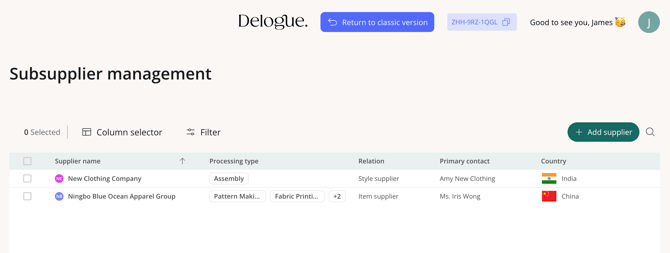
- Subsupplier library - Create the companies you work with for production
- Facility management incl. production processes - Document where production takes place
- Supply chain mapping - Visualize your full production network
NOTE: Some Supplier Module features may require specific permissions or subscription levels from your brand customers.
Merging Legacy Supplier Accounts
After creating your supplier portal account, you need to ask your brand customers to connect their existing supplier data to your new unified account.
NOTE: Remember that only 1 user per supplier organization should register for the supplier portal, and receive the invite code.
Share your invite code
Your invite code is the key that your brand customers will use to initiate the merge process. To find your invite code:
- Look in the welcome message displayed after account creation or find it in the top right corner of the screen next to your name.
Your invite code format looks like this: X45-345-0912
- Click the copy button to copy it to your clipboard
Email example
| To: Brand Customer contact |
|
Subject: Convert to Delogue Supplier Portal Hello, I have created a Supplier Portal Account in Delogue PLM. To connect my account with your existing supplier data, please use the following invite code in your Admin section: Invite Code: X45-345-0912 This will allow me to access your systems through the new unified Supplier Portal. Please let me know once you've initiated the merge request, and I will approve it promptly. Thank you! |
INFO: You only need one invite code for all your brand customers.
You can send the same invite code to all your brand customers, and each customer will initiate a separate merge request.
Accepting the merge request
After your brand customers receive your invite code and initiates merge requests, you will need to review and approve each request.
Receiving a merge request
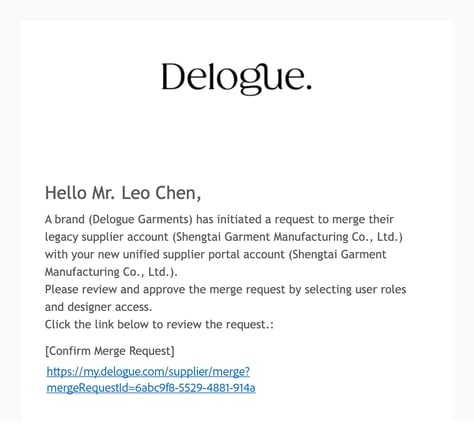
When a brand customer initiates a merge request, you will receive an email notification with the subject: "[Action Required] Confirm merge request from Designer XYZ"
The email contains:
- The name of the brand customer (e.g., "Designer XYZ")
- The legacy supplier account name
- A link to review the merge request
- Click the [Confirm Merge Request] link in the email
NOTE: Only users with the 'Supplier Admin’ role can approve or reject merge requests.
Reviewing the merge request
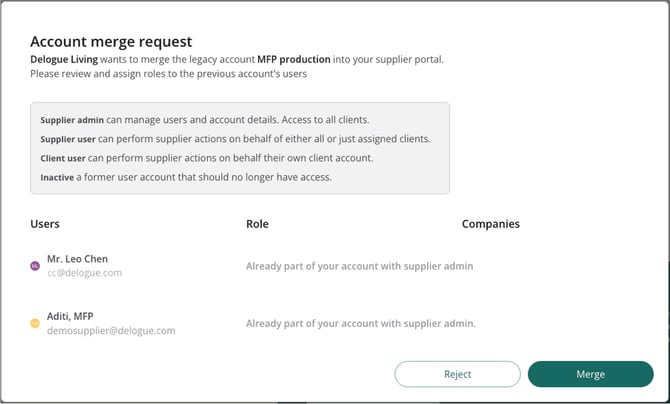
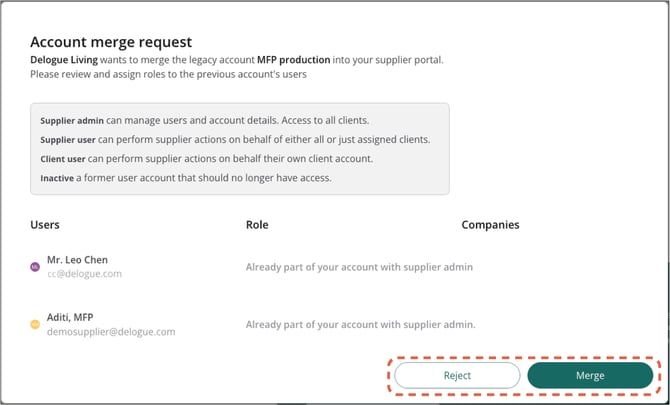
After clicking the link, you will see the Account Merge Request screen with:
- The brand customer requesting the merge
- A list of all users from the legacy supplier account
- Options to assign roles and brand access for each user
Take time to review:
- All users listed
- Their current roles in the legacy system
- Which users should have access to this brand customer
Assigning roles
For each user in the list, you need to select a Role
- Supplier Admin - Full access to all brands and administrative functions. The brand selector will be disabled and set to "All Brands"
- Supplier User - Limited access. You must select which brands they can access
Brand Access Selection (Supplier Users only)
For users with the Supplier User role:
- Select one or more brands (company organizations) from the dropdown
By default, the brand initiating the merge request is pre-selected - You can add or remove brand access as needed
NOTE: The brand company has the final controle of the access.
Special User Types
Some users will appear with special labels and restrictions:
- Already part of your account: 'Already part of your account with supplier admin"'- These users were added during signup or previous merges. They cannot be changed and are shown for reference only.
- Client Users: These are employees of the brand customer, not your staff. They appear with a 'Skip' checkbox that is selected by default. If you uncheck 'Skip', they will be processed in the merge, but this is rarely needed
- Inactive/Invited users: These users will not appear in the list and are automatically skipped
Role Assignment Rules
- Supplier Admin always overrides other roles
- You cannot downgrade an existing Supplier Admin to Supplier User
- Client Users should generally be skipped unless you have a specific reason to include them
- The first merge takes precedence for user roles and access
Approving or rejecting the merge
After reviewing all users and their assignments, click the 'Merge’ to accept.
-
You will see a confirmation message that the merge is complete
To reject the merge, click the 'Reject' button.
-
The merge request will be cancelled and email notification will be sent to the brand customer who initiated the request. If you have rejected the request by mistake, you can ask the brand to resend the merge request.
NOTE: After you approve a merge, all users and data are immediately transferred.
This action cannot be undone.
After merge completion
Once you approve a merge request all users from the legacy supplier account are transferred to your portal account.
- All styles, items, and data references are updated to point to your new supplier organization.
- The supplier label in the brand's Admin section changes to "Supplier Portal Account"

Confirmation emails are sent to:
- All Supplier Admins in your portal account
- The brand customer who initiated the merge request
INFO: After this step, your colleagues from your supplier organization will now be able to log in to the portal account.
Multiple brand customers
If you work with multi brand customers:
- You will need to share the same invite code to all your customers.
- Each customer will send a separate merge request
- You will need to review and approve each request individually
- The same users will appear in multiple merge requests, if they work with multiple brands
- You can assign different brand access to users for each merge
INFO: Your invite code remains the same for all brand customers. You only need to share it once per customer.