
Introduction & best practice
IMPORTANT: It is important that you read the whole article thoroughly before proceeding with the setup of the integrations. You risk importing a large volume of incorrect data into Delogue, which you'll then have to clean up entirely before you can run the mastersync again.
The Delogue × SPY integration lets you push styles from Delogue directly into SPY. Styles are pushed with a single click - individually or in batches across seasons and brands. Before you can start syncing, both systems need to be properly prepared and connected. This guide walks you through everything you need to do, in the right order.
NOTE: The SPY integration requires the SPYSystem module to be active for your company. Contact Delogue Support if you are unsure whether this has been enabled.
Table of contents
- Before you start
- Video guide
- Where to create and update each data type
- Pushing styles to SPY
- The integration log
- Things to be aware of
- What is not yet available
Before you start
Getting the integration right starts with good preparation. Work through the steps below before running the initial master synchronisation. With the right preparation you will be ready to push styles directly to SPY right after.
Step 1 - Contact SPY support
To set up the connection, you will need credentials and configuration details that only SPY can provide. Reach out to SPY's support team and ask for:
- Your API credentials for the Delogue integration: Client ID and Client Secret
- Confirmation that your main brands are correctly configured on their side and ready to sync between the two systems.
Step 2 - Align your data between SPY and Delogue
The next step is making sure that all the data points for the mapping are ready. Some data points are already mapped by default in the integration. These are the style name, style number, size range, season, brand, style color supplier and supplier country.
The rest of the datapoints that are needed for the integration, we need to map ourselves. You can also decide to exclude some of the data points during this process.
There are three mandatory fields from SPY that do not have a direct equivalent in Delogue. Therefore, you must manually create Custom Fields for these three specific data points:
- Deliveries
- Noos (has to have the values: Noos, None, Rerunner & EndSale before master sync)
- Assortment Template
When creating the three custom fields above in Delogue, please apply the following settings to ensure the integration works correctly:
- Custom Field Type: Allowed Values.
- Color Settings: Check/tick the box for Diff. per Color.
- Initial Value: Simply type 'unset' into the first row under the 'Value' column.
To keep things simple and avoid confusion, we recommend using clear, recognisable names such as: SPY Deliveries, SPY Noos, SPY Assortment Template.
To learn more about creating custom fields, click here.
Now that the mandatory fields are set up, you can optionally map additional, non-mandatory fields if they are relevant to your workflow.
Below is a list of all available SPY fields you can connect to Delogue. Note that some of these can be mapped directly to existing Delogue fields, while others will require you to create new Custom Fields (following the same process outlined above).
Field in SPY |
Field in Delogue |
Comments |
| Deliveries | Custom Field 'Allowed values - per color' |
Mandatory |
|
Country of origin |
Custom Field 'Allowed values' | Not mandatory |
| Weight | Custom Field 'Free Text' | Not mandatory |
| Custom Tariff | Custom Field 'Allowed values' | Not mandatory |
| Type | Group, Categories or a Custom Field | Not mandatory |
| Category | Group, Categories or a Custom Field | Not mandatory |
| Gender | Custom Field 'Allowed values' | Not mandatory |
| Sub brand | Custom Field 'Allowed values' | Not mandatory |
| Dimensions | Custom Field 'Free Text' | Not mandatory |
| Noos |
Custom Field 'Allowed values - per color' |
Mandatory |
| Assortment Template | Custom Field 'Allowed values - per color' | Mandatory |
| Quality | Custom Field 'Allowed values' | Not mandatory |
THE CRUCIAL CLEANUP - IMPORTANT
- Colors are often setup different in Delogue and SPY. In Delogue we have the possibility of typing both color name and color ID. In SPY, you only have a color name. This leads to some brands having a combination of the Delogue color ID and color name merged into the SPY color name. The color names in both system must be exactly the same.
If you skip this step, you will end up with duplicate colors in Delogue, and none of the colors assigned to your styles will be able to link correctly to SPY. In practice, this means you cannot send styles to SPY until the colors have been cleaned up and the master sync is run again. - Commas ',' is not accepted by custom fields in Delogue. This means that you have to do one of two things. Either go through your admin section in SPY and remove commas from all the fields you want to map, or do the cleanup after the master synchronisation. We recommend doing the cleanup first to keep all data the same across the 2 systems.
-
Before proceeding to the next step, you have to be mindful if you have a custom field already in use for SPY data. In this case, all values you've set up in Admin must be exactly the same in both systems. If you have the smallest difference in the spelling, you will have double values after the sync, which you will have to clean up manually. This also counts for supplier names, brands, and seasons.
- If a supplier or season is inactive in both Delogue and SPY, it will remain inactive after the master sync — these can be deactivated ahead of the sync, as long as this is done in both systems. All brands will be set to active in Delogue after the master sync, as brands cannot be deactivated in SPY. Any brands that should remain inactive will need to be deactivated manually in Delogue after the sync has completed.
- It's important that the tariff code setup is as such - Tariff ID goes in the custom fields ID, and the tariff description goes in the custom field name.
Make sure no tariffs in SPY are sharing the same tariff ID. Delogue only allows for one tariff value per tariff ID.
Step 3 - Configure the integration
In order to configure the SPY integration, head over to Admin > Import/Export > Custom Export. Click on 'Add Custom Export' and choose the 'Export Method: SpySystemsV2'. Set it to Active and give it a suitable name such as 'SPY'.
NOTE: If you do not have the Export Method 'SpySystemsV2' as a choice, please reach out to the Delogue Support, so that they can add this Module to your platform.
Once the the Custom Export has been added, click on the green 'Setup' button.
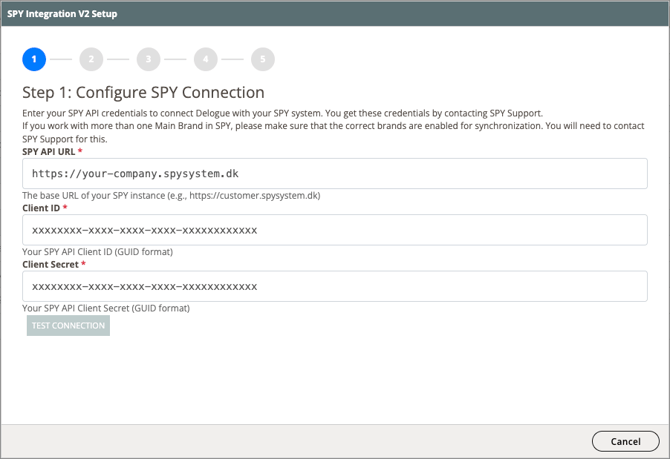
Step 1: Configure SPY Connection - A pop-up will appear where you will have to fill in the info received from SPY in Step 1 (above). Once the information is typed, click 'Test Connection' and continue by clicking 'Save & Continue'.
Step 2: Introduction to the mapping process. Click Next.
Step 3: Configure Custom Fields - Here we will map our (custom-) fields.
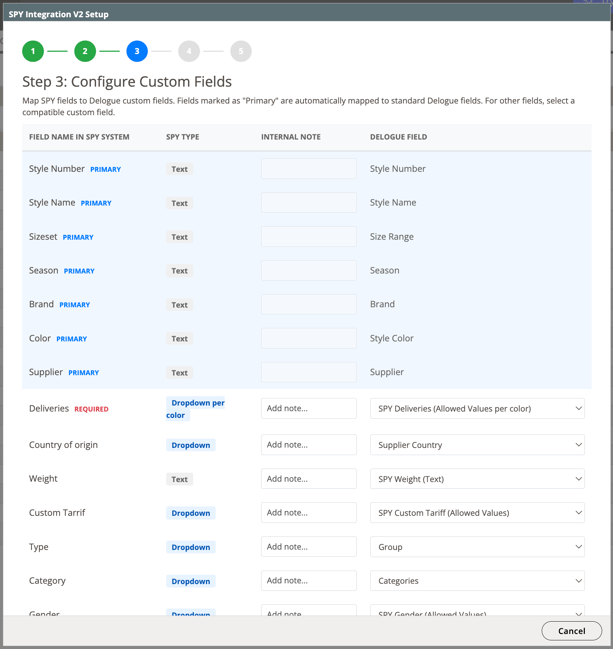
Once all the required and wanted Fields are mapped, click on 'Save & Continue'.
NOTE: As mentioned earlier, if a value already exists in Delogue with a slightly different name than in SPY, the sync will create a duplicate rather than overwrite the existing entry. This is why aligning all the values of these mapped fields is so important.
After the sync, review your data and deactivate or delete any duplicates.
Step 4: Sync Master Data
The master synchronisation is the first step after your integration has been configured. It imports all existing reference data from SPY - brands, suppliers, seasons, and colors - into Delogue, so both systems are working from the same set of values.
This process will take some time. When the sync is complete, check the Integration log to confirm everything imported correctly.

NOTE: Main Brands are not part of the automatic sync - they are added manually by SPY per customer API key. If Main Brands are missing in Delogue after the sync, ask SPY to open up for them and then run the master synchronization again.
Step 5: Configure Webhooks & Complete - This is the last step in this process:
When you create something new in SPY - like a season, a supplier, or a brand - Delogue needs to know about it so it can show the same information on its side. The webhook is what makes that happen automatically. Think of it as a doorbell: the moment something is created in SPY, the webhook rings Delogue and says "hey, something new is here - come get it." Without it, you would have to manually update both systems every time, which would be both time-consuming and prone to errors.
- Copy the Endpoint URL and click on 'OPEN PORTAL'
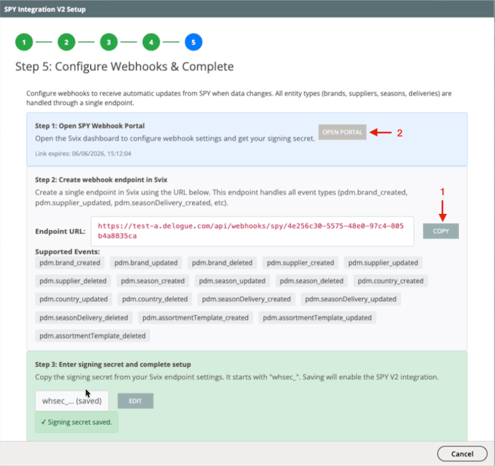
- A new window opens - Click 'Add Endpoint'
- Paste the Endpoint URL into the Endpoint URL in the portal
- Subscribe to Events - tick on all 'Supported Events' showcased in Delogue inder the Endpoint URL.
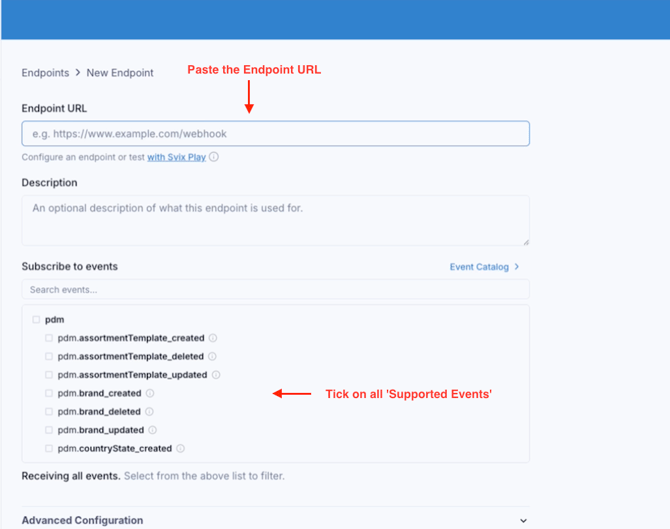
- Click 'Create'
- There will be a 'Signing Secret' on the right side - Click the eye and then Copy
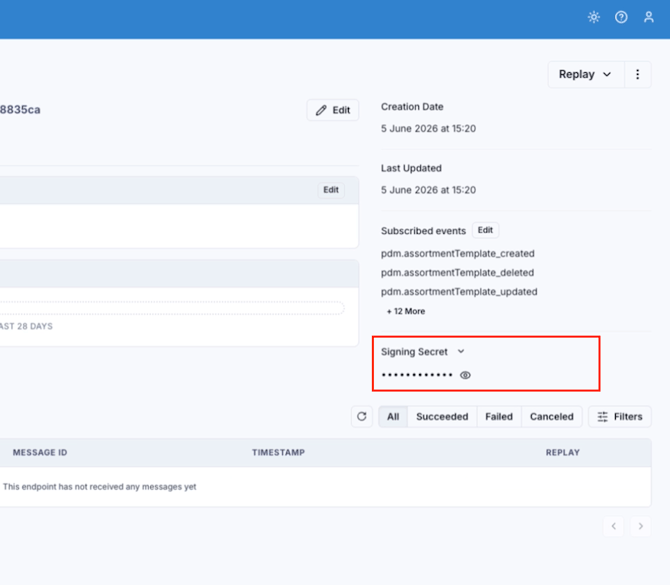
- Go back to Delogue and Paste the 'Signing Secret' in 'Step 3: Enter signing secret and complete setup'
- Click: Complete Setup
Video Guide
Where to create and update each data type
Once the integration is active, some data is owned by Delogue, some by SPY. The table below gives a brief overview:
| Data type | Create in | Update in |
|---|---|---|
| Styles | Delogue | Delogue |
| Colors | Delogue | Delogue |
| Brands | SPY | SPY |
| Suppliers | SPY | SPY |
| Seasons | SPY | SPY |
| Season Deliveries | SPY | SPY |
| Assortment Template |
SPY |
SPY |
| Sizes | Delogue | Can't be updated |
|
Custom fields values |
Delogue | Can't be updated |
|
Groups |
Delogue | Can't be updated |
|
Categories |
Delogue | Can't be updated |
How to handle Season & Season Deliveries:
Seasons and deliveries must be created in SPY. The moment they have been created the will be sent to Delogue due to the webhook.
Deliveries are created in SPY and set up as allowed values in a custom field. Once you've created a new delivery under a season in SPY it will be created in its corresponding custom field in Delogue. The delivery name will start with the season name it relates to and then the delivery name. It would look like this: 'SS29 - Drop 1'. If the season and the delivery don't align, the style won't be able to be pushed.
Make sure you to set up the season correctly the first time. Updating the season year or season type in SPY will only complicate the process. If you find the need to correct the season name, you will have to delete the already made deliveries and create all new deliveries for the corrected ones to appear in Delogue.
How to handle Size Range & Assortment Template
With the master sync, no size set will be imported from SPY to the equivalent size range in Delogue. Though if the names correlate, then the mastersync will connect the matching size ranges/ sets.
If you need a new size range, you will have to create it Delogue. The moment you push a style with the new size range, it will be created as a size set in SPY.
If the Assortment Template and Size Set/Range on a style do not match the SPY setup, when you push the style, the style in SPY won't be given an assortment. If this happens, you will have to correct this manually in both Delogue and SPY.
Be mindful if you work with inactive sizes. These won't be reflected in SPY. All sizes from the size range will be exported to SPY and set as active. You can thereafter manually inactive the sizes in SPY.
How to handle Colors
With the master sync, all colors ever made in SPY will be imported to Delogue. Some of these colors might not be relevant to how you work in Delogue. You can decide to either delete the unwanted colors entirely or you can decide to set them as inactive. If you have a lot of unwanted colors we will recommend to set them as inactive via an excel update. See here for more information about this here.
How to handle Suppliers
With the master sync, all suppliers ever made in SPY will be imported to Delogue. Some of these suppliers might not be someone you work with anymore. You will have to set them as inactive in SPY, this should then also inactive the supplier in Delogue. If you've already inactivated suppliers in the cleanup, then this shouldn't matter.
Only the supplier name is synced in this version - other supplier details are not included.
Pushing styles to SPY
Before pushing a style, make sure it meets all four of these conditions - styles that do not qualify will be skipped:
- Status: Published
- Export flag: Ready for export
- At least one color assigned
- A value filled in for Assortment Template
Single style push
Navigate to: Styles > [Style name] > Overview
- Click 'Push to SPY' in the top bar
- Open Admin > Import/Export > Log to confirm the push was successful
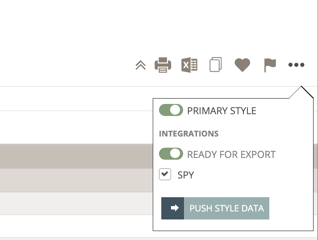
NOTE: The 'Integration' role must be assigned to the brand users who will push styles to SPY. Without this role, the push button will not be visible. To learn more about user roles, click here.
Batch push
Navigate to Admin > Import / Export > Custom Export > Manual Push
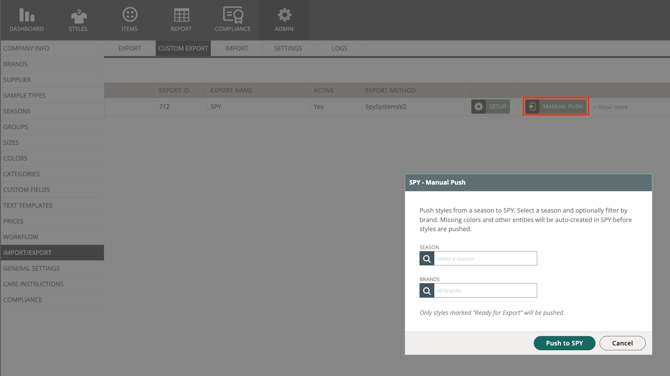
- Select the Season and Brands of the styles you want to push
- Click 'Push to SPY' from the action bar
NOTE: Only styles that meet all four requirements listed above will be included. Styles that do not qualify are automatically skipped - no error is shown for skipped styles, so double-check your selection if fewer styles appear in SPY than expected.
NOTE: Changes will appear in SPY within seconds for a single style. Larger batch pushes may take a few minutes. If something does not appear as expected, check the Import/Export > Log tab.
Cancelling styles
In the case you would like to cancel a style that has already been pushing from Delogue to SPY, then you will have to make sure to manually do this in both systems as they handle this differently.
The integration log
Whenever data is pushed or synced between Delogue and SPY, the result is recorded in the integration log. This is your go-to place for checking whether a push was successful and for understanding what went wrong if something did not sync as expected.
If something went wrong in sending over styles, the first thing you should do is checking the integration log.
Navigate to: Admin > Import/Export > Log
[IMAGE: Screenshot of the Import/Export Log tab showing integration entries]
Each entry shows the date, the type of action, and the outcome. If a style fails to push, you will find the reason explained here. Always check the log first when troubleshooting a sync issue.
Things to be aware of
Deleting values imported from SPY: If you clean up duplicates or unwanted values that were imported during the master sync, this will not affect SPY - the integration does not push deletions back. It is safe to tidy up your Delogue data without worrying about changing anything in SPY.
What is not yet available
The following are not included in the current version of the integration:
- Style prices - price data does not sync between Delogue and SPY
- Images - image data does not sync between Delogue and SPY
- SPY custom fields - SPY's own custom fields cannot be mapped to Delogue custom fields