
Introduction & Best practice
This article will guide you to the final steps of the Supply Chain Mapping process; reviewing and approval of the entire mapping.
If you haven't yet started with creating the Supply Chain Mapping request, please read the article on how to create the request here.
Once your supplier has confirmed their processes, the mapping request will now move to Initiated state, which gives you an opportunity to also assist with completing the mapping.
Once the supplier has completed the facility mapping, you will be notified to review their work. This is your opportunity to check that the right facilities have been mapped to each process, flag anything that needs clarification, and ultimately approve the mapping.
This guide covers everything that happens on the brand side after a mapping request has been published — from monitoring progress through to final approval.
Table of contents
Monitoring request progress
You can check the status of any mapping request at any time from the Supply Chain Mapping overview in the Supplier Module.
- Navigate to the Mapping Request tab in your navigation bar.
Each request card displays:
- The current status of the request
- The supplier name and contact
- The styles and items included
- The process categories that were requested
Requests that are in Initiated state indicate that the supplier has confirmed the processes and begun the mapping.

You do not need to wait for the supplier to complete their mapping before checking in — you can open the request at any point to see what has been completed so far by clicking on the 'Map Suppliers' option from the Action column.
NOTE: You will receive an email notification when the supplier submits their completed mapping for your review.
The status would show as 'Awaiting approval' and will be moved to the 'Review & Approve' section.
Understanding the mapping view
When you open a mapping request, the interface is organized by individual process. For each process, the supplier has mapped one or more facilities — these are the physical locations or subsuppliers where that process takes place.
Start by opening the mapping request, by clicking on the 3-dots to the right side of the request and select 'map suppliers'.
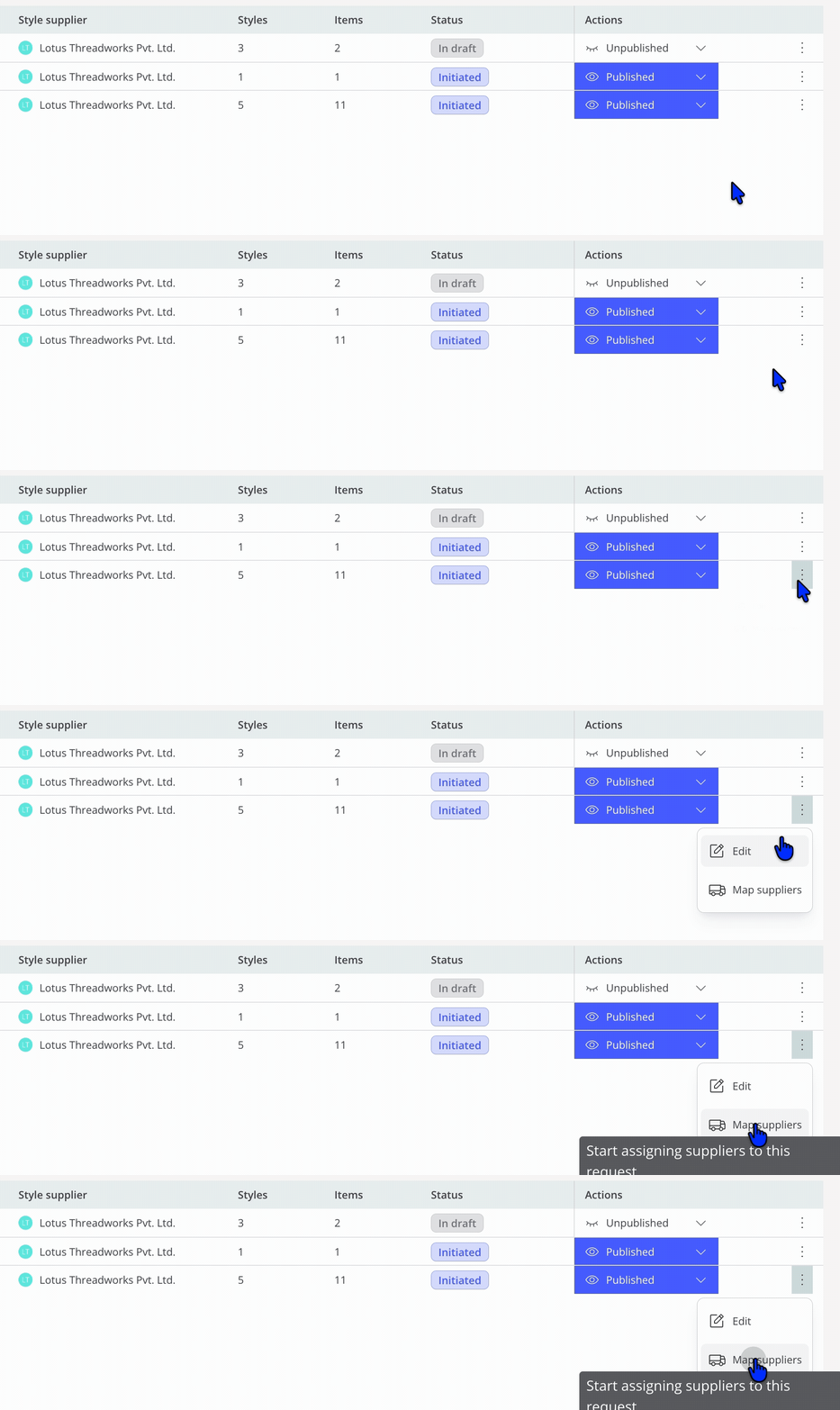
Once the mapping request is open, you will be able to continue to the style and item mapping overview.
For each mapped process you will see:
- The process name
- The facility and Subsupplier that the supplier has linked to that process
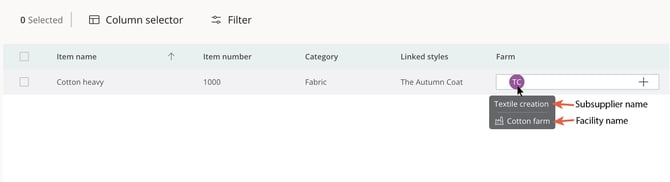
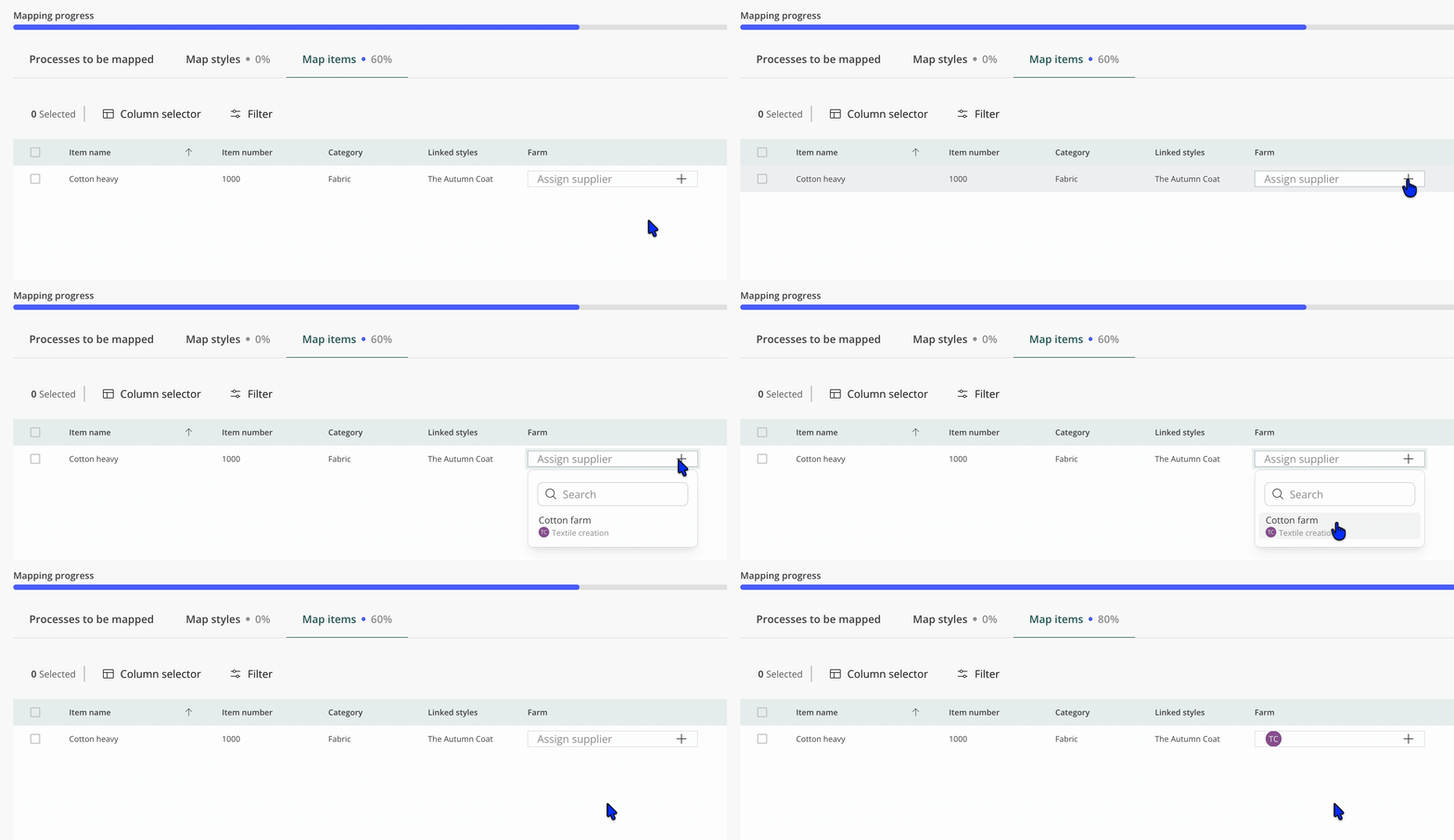
NOTE: You can also map facilities directly from this view. However, your mapped facilities will be anonymized from the perspective of the supplier.
Reviewing the supplier's mapping
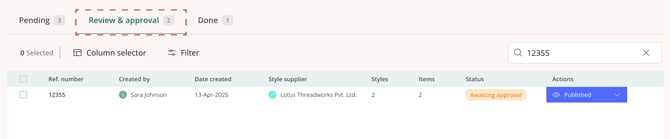
Once the supplier has completed their portion of the mapping, the request will move to the 'Awaiting Review' state.
-
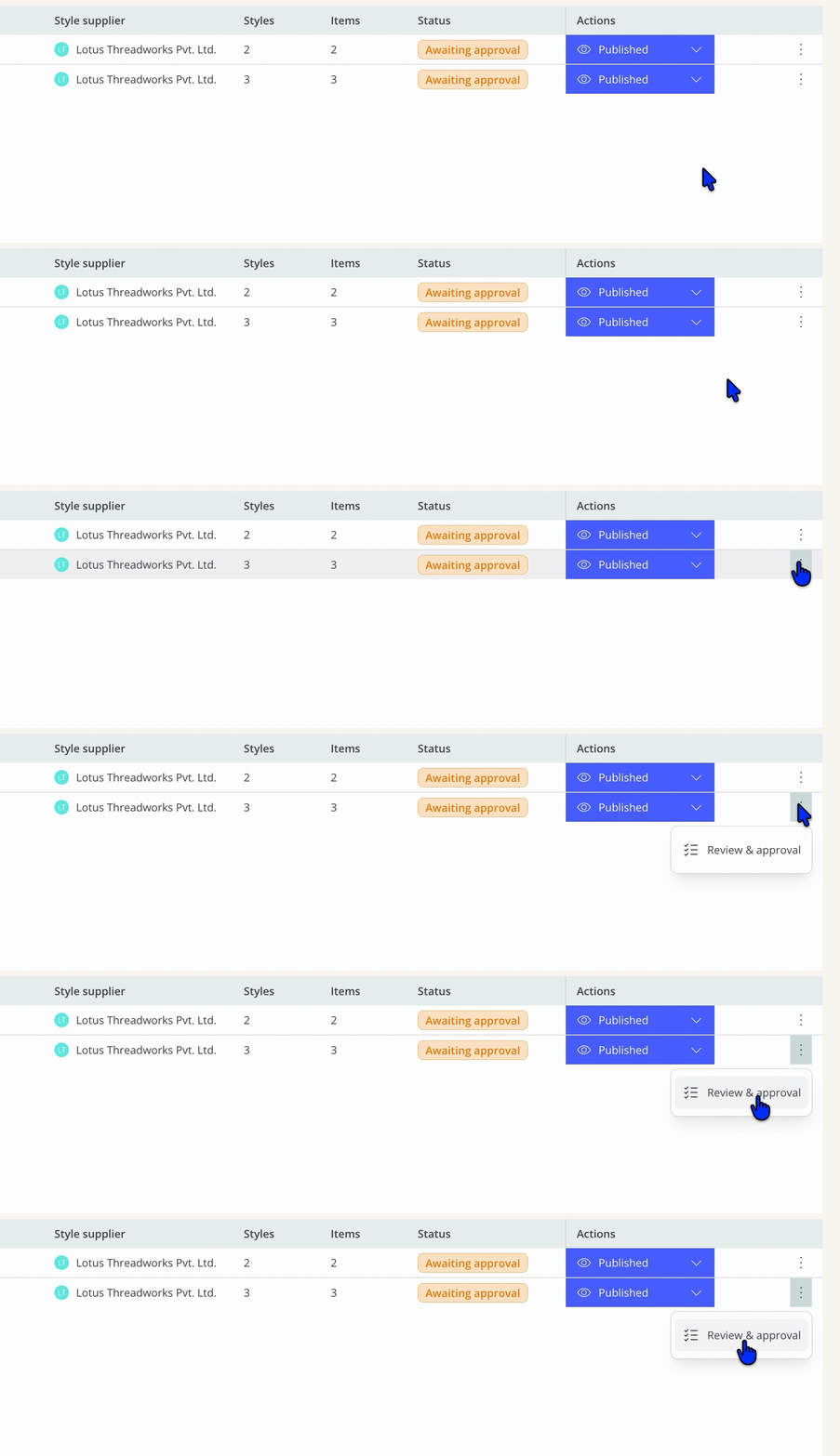
From the Action column, click 'Review and Approve'
-
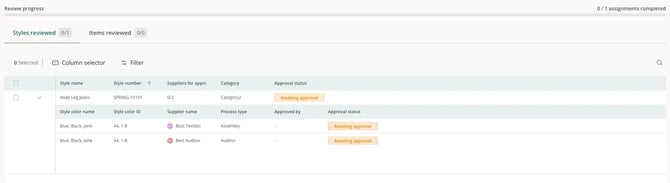
Work through the mapped processes to verify that the facility assignments are accurate and complete.
Review certificates
Facility certificates are applied automatically throughout the mapping process based on the supplier's assigned facilities.
Product certificates, on the other hand, are added manually by the supplier and assigned to specific variants and processes.
Review these certificates alongside the facility assignments to confirm the compliance picture is complete for the styles and items in this request. This is the point where certificate gaps are identified and chased, so it's worth checking that the certificates you expect are present and valid against your shipment date (ETD).
Note: Unlike suppliers, brand users have the flexibility to approve a mapping that includes an expired certificate. While a warning banner will appear, it will not block your progress.
This applies whether you are approving the request (moving it from 'Awaiting approval' to 'Approved') or sending it back ('Needs review'). Please use your judgment to either approve despite the warning or flag the row and return it to the supplier for renewal.
Approving individual mappings
For each process-facility combination you are satisfied with:
- Click the 'Approved' action on that mapping row
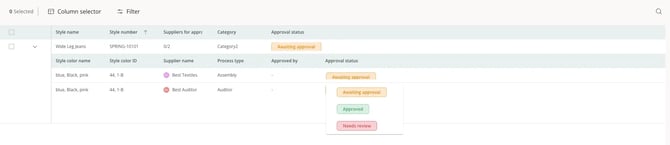
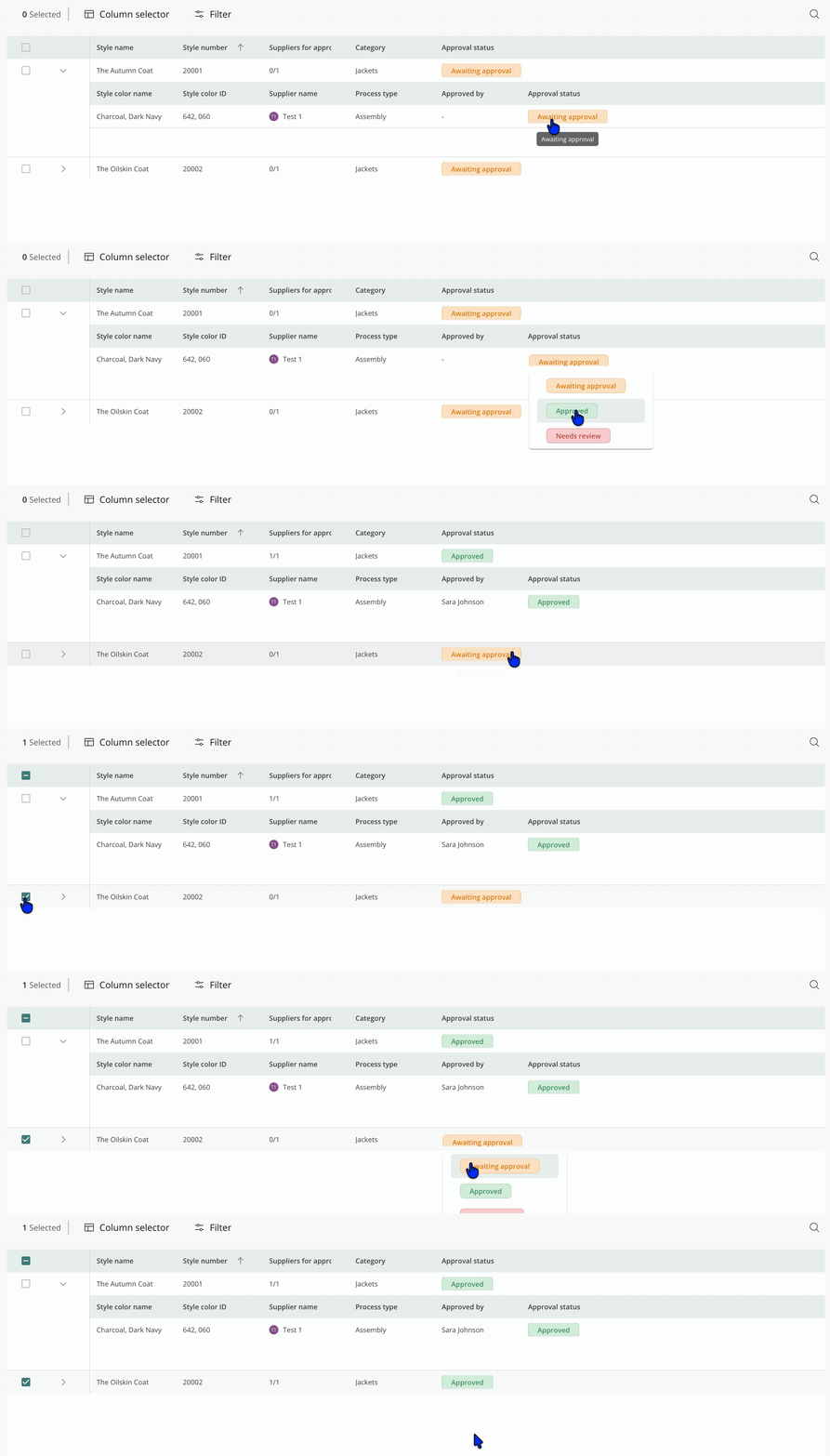
You can approve mappings individually as you work through them, or approve all at once when you are ready to submit.
Flagging mappings for further review
If a mapped process or facility needs clarification or correction:
- Click 'Needs review' on that mapping row
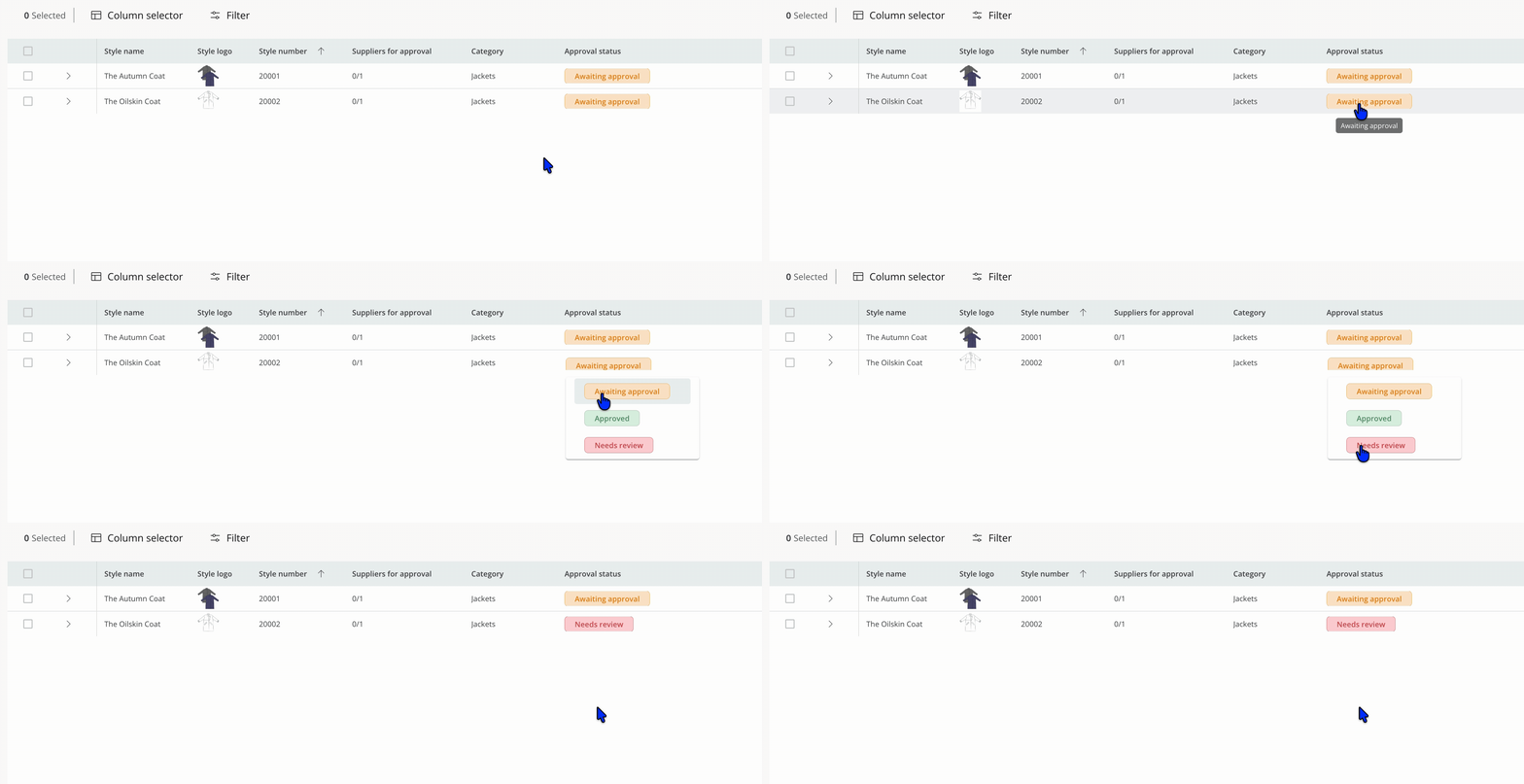
Flagged mappings are highlighted so both you and the supplier can easily identify what requires attention.
Submitting your review and final approval
Once you have worked through all the mappings:
If some mappings need changes — proceed to click on 'Finalize & Submit'.
This moves the request back to the 'Pending' overview marked with 'Needs Review' status and notifies the supplier.
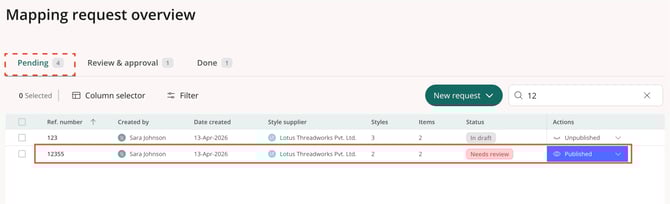
The supplier will be able to see your flagged items and comments, update their mapping, and resubmit.
You can go through this review cycle as many times as needed until you are satisfied with the mapping.
If everything looks correct — proceed to click on 'Finalize & Submit'
This moves the request to the Done overview marked as Approved status.
The mapping is now locked and represents the confirmed supply chain for the styles and items included in the request.

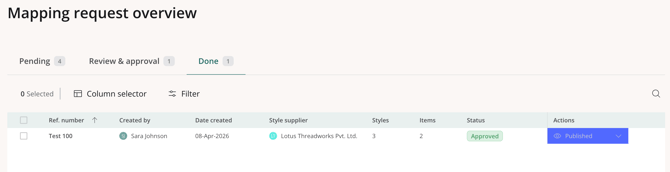
NOTE: Once approved, the mapping cannot be edited. If changes are needed later, a new mapping request should be created.
Putting a request on hold
If circumstances change while a request is in progress — for example, a style is updated, a supplier changes, or you need more time — you can pause the process at any point by placing the request 'On Hold'.
Navigate to the request and select 'On Hold' from the available actions.
While on hold:
- The supplier cannot take any actions on the request
- You can edit the process selection, styles, and items
- Publish the request again when you are ready to resume
NOTE: Placing a request on hold will reset any process confirmation the supplier has already completed. They will need to reconfirm their processes when the request is republished.
Exporting an approved mapping
After a mapping is approved, you can export the mapping as a .csv file. Open the mapping and simply click the 'Export Mapping' button and this will export the information.
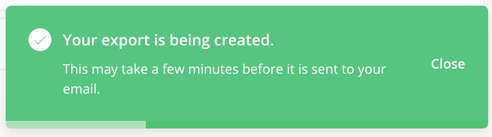
A success toast will show, and the mapping will be sent directly to your email.
Explanatory of the Request statuses
| Status | What it means | Your available actions |
|---|---|---|
| In Draft | Request created but not yet published. | Publish · Edit (processes, styles, items) |
| Requested | Request published. Waiting for supplier to confirm processes. | On Hold · Edit (processes only) |
| Initiated | Supplier has confirmed processes. Facility mapping is underway. | On Hold · Map Suppliers · Edit (processes only) |
| On Hold | Request paused. All details are editable. | Publish · Edit (processes, styles, items) |
| Awaiting Approval | Supplier has submitted completed mapping for your review. | Review & Approve |
| Needs Review | You have returned the mapping to the supplier with flagged items. | Map Suppliers |
| Approved | All mappings reviewed and approved. Mapping is complete. | — |