
Introduction & best practice
The Packaging and Packaging Waste Regulation (PPWR) is a EU regulation. To demonstrate that a packaging unit meets the requirements, PPWR requires you to hold supporting technical documentation and issue a Declaration of Conformity (DoC).
The PPWR DoC generator turns the packaging data you already maintain in Delogue into a ready-to-use Declaration of Conformity, so you don't have to rebuild the document by hand for every packaging component. It pulls the relevant information from your styles and items and creates an export-ready document you can store, share, and keep up to date as your packaging changes.
Best practice: keep your packaging materials, weights, and recycled-content data complete and current in Delogue. The DoC is only ever as accurate as the data behind it — clean, structured source data means a compliant document, rather than a manual chase across spreadsheets.
You can read more about the PPWR regulation here.
Table of Content
Before you start
1) Make sure the 'Compliance Admin' or 'Compliance User' role are assigned to you as a user. To learn more about assigning different roles to a user, click here.
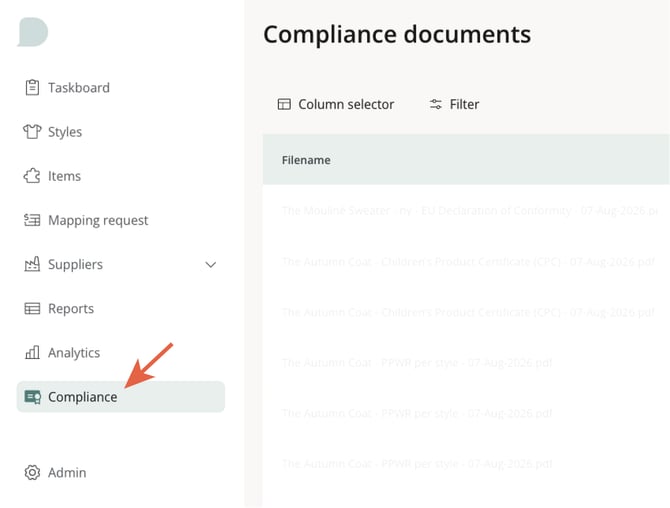
2) Make sure that the module is enabled on your platform. The module showed show in the left hand side menu in Delogue 2.0, under Compliance Documents.
3) If you want certificates data and appendices to be included in the PPWR DoC. the relevant certificates must already be registered on the related styles.
INFO: If the module is not showing and you have already the correct user roles, please reach out to the support: Delogue Support
4) Setting up the template: Start by reading the step-by-step guide on how to create a DoC template by following this link: Admin > Compliance > Doc templates
Once you have set up the template with all the relevant data, you are ready to continue with creation of the actual Declarations document.
Generating a declaration of conformity
Navigate to Delogue 2.0 > Compliance > Compliance documents.
- Click on 'generate document' on your right
- Follow the 6 steps in the generator
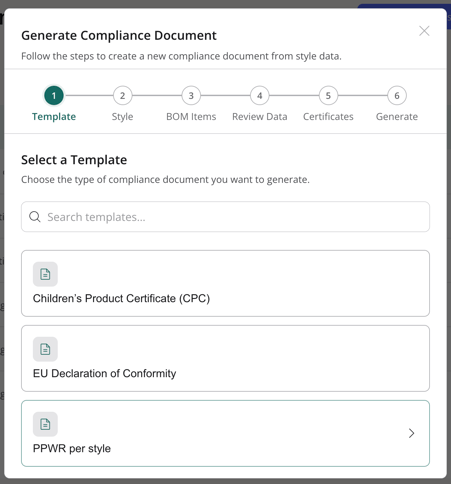
Step 1 - Select your template
Choose the type of compliance document you want to generate, e.g. a PPWR packaging declaration. Use the search field to filter the list.
The list will show all the templates that are created in your Admin > Compliance > DoC templates
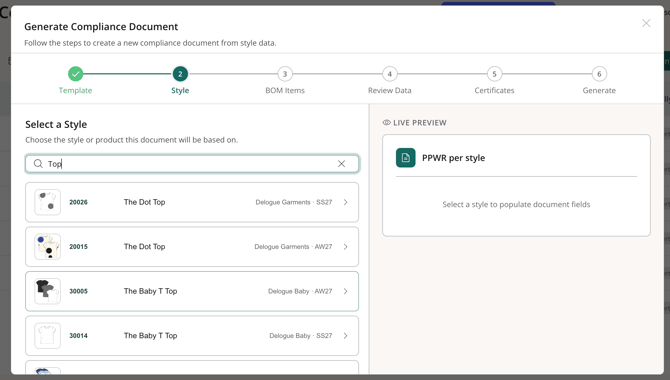
Step 2 - Select your style
Select the style or product the document will be based on. Search by name or style number to find the correct style.
Once selected, you continue to the next step and a live preview populates the document fields with the style's data.
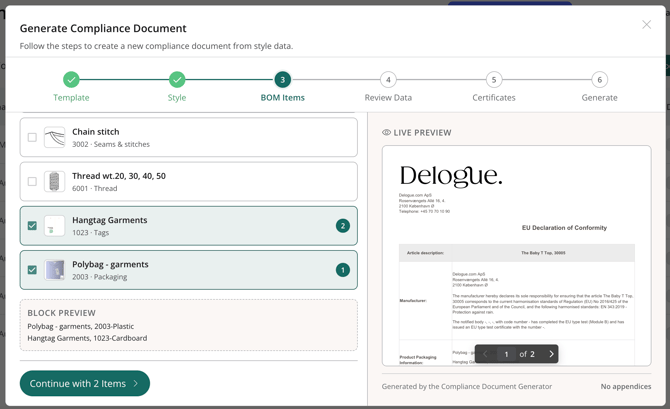
Step 3 - Select the items required
Choose which of the style's items to include in your declaration.
You can divide your selected items into 2 groups, if you created 2 item blocks in your template, simply fill in each of the template's blocks — for example, block 1 for packaging components and block 2 for materials and components.
- Group 1 is by default selected — Select the items
- Click on Group 2 if needed and select the items.
- The order you pick items in sets the order they are rendered in the document — each item shows its position number.
- A block preview at the bottom shows what the active block will contain.
- Click Continue with (X) items.
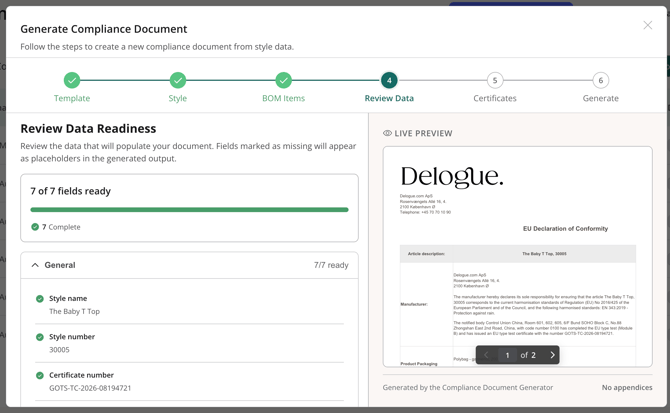
Step 4 - Review the data
The generator checks that all data needed by the template is available, e.g. style name and number, certificate name and number, and validity dates.
- The progress bar shows how many fields are ready and filled out. I
- Expand each section to see the resolved value for every field.
- Fields marked as missing are not blockers — they appear as placeholders in the generated output so you can spot the gaps.
Step 5 - Select certificates to merge
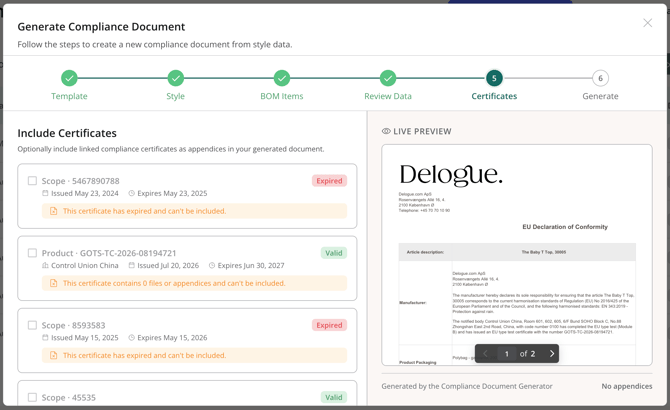
Choose the relevant certificate to add to the document.
- You can only choose certificates that have a pdf uploaded.
- Certificates show their type (Product, Transaction, Scope, Test report), number, issuer, validity dates and status.
- Expired certificates can't be included — they are greyed out with a notice.
- Expand a certificate to see its files, and tick the ones to attach — selected files are included as appendices in the generated PDF.
- Click Continue with 1 certificate, or Continue without certificates if the document doesn't need one.
Step 6 - Generate your document
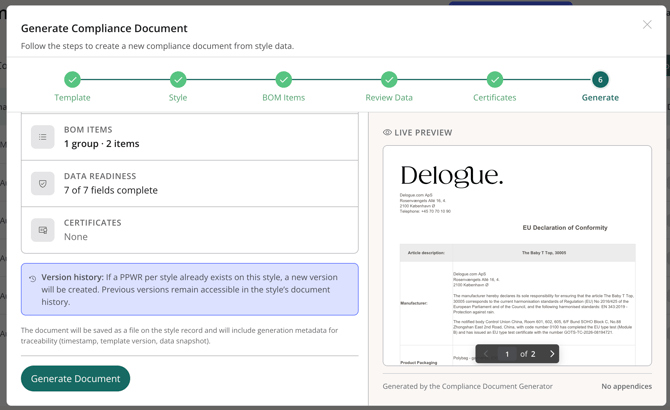
Review the summary below and generate your compliance document. If any fields are missing data, you will be met with a warning, but you can still proceed.
- Click 'generate document'
The document is generated automatically. When it's done you'll see a confirmation with the file name.
- The document is saved to the Compliance documents list and to the style record under Style Files.
- Click Download document to get the PDF right away, or Create another to start a new one.
NOTE: If generation takes longer than expected, you'll be offered Retry, Start over or Cancel. Retrying usually completes the document — you can also check the documents list a few minutes later.
Compliance document list
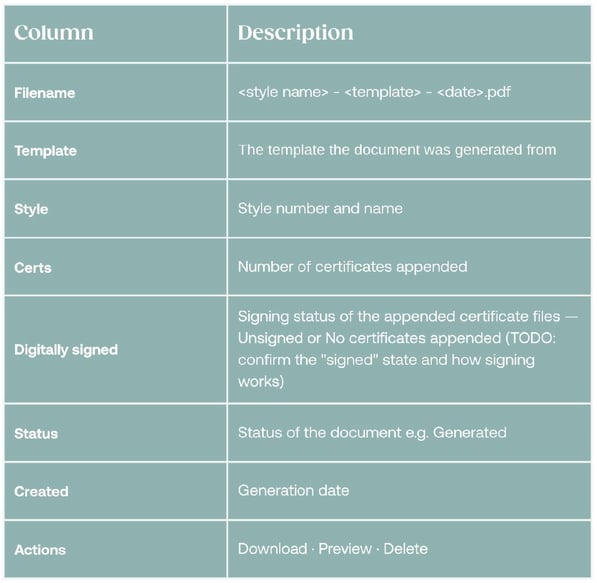
All generated files are shown in the Compliance Document list, with the newest on top.
You can use the standard Column selector and Filter to create the perfect overview
Deleting a document
Click the three-dot menu (⋮) on the document row and choose Delete. This permanently removes the document. This can't be undone.
Notes
The Declaration of Conformity is a legally significant document. Always review the generated output against your own compliance obligations before issuing it — the generator assembles and formats your data; it does not replace your responsibility to verify that the packaging actually meets the PPWR requirements.