
Introduction & best practice
Disclaimer: Some amendments to the legislation have been proposed and approved. This page will be updated once the proposals have been formally adopted.
The EU Deforestation Regulation (EUDR) aims to ensure that products entering or leaving the EU market are not linked to deforestation or forest degradation. As part of this, companies must be able to document their compliance through traceability, due diligence, and risk assessment.
In Delogue, you can manage the core parts of this compliance process in one place. Our platform supports a structured approach to handling product-level documentation, allowing you to collect, store, and connect information from suppliers directly to the products affected.
To make EUDR manageable, we recommend dividing your process into different steps. While a key part of due diligence happens later in the product journey, when you have certificates and geolocation data ready from suppliers, it makes sense to start earlier. For example, consider the deforestation risk associated with the sourcing country already during development or sourcing decisions.
Table of contents
- Before you start
- Working With Certificates
- EUDR custom field setup
- Tag your style if it falls under the legislation
- EUDR style custom report setup
Before you start
Not everything in the EUDR process happens in Delogue, but the parts that do are essential. Keeping your data structured and accessible helps you stay compliant and makes collaboration easier across teams. Product development is where material choices are made, so it's smart to start thinking about EUDR risks early, not just at the PO stage. In Delogue, you can upload certificates and link them directly to components like leather or wood buttons in the compliance module. That way, you build traceability into your workflow.
If you're the first to place products containing soy, palm oil, cocoa, coffee, wood, rubber, or cattle on the EU market, or export them, you're the one responsible for submitting a Due Diligence Statement.
The work with the EUDR can be devided into 3 steps, where step 1 and 2 can be managed and documentet in Delogue.
- Collect the right data: Gather details on what the product is, where it came from, and who supplied it. You’ll need geolocation data of the land where the raw material was grown. The chain of custody plays a significant role here.
- Assess the risk: Check if there’s a risk of deforestation or illegal sourcing. Consider the country of origin, supply chain complexity, and any warning signs - check the list here. (simplified rules for low-risk countries)
- Act on the risk: If you can’t confirm it’s low risk, you must reduce it, for example by asking for more documents, doing audits, or supporting suppliers in improving traceability.
If you source products exclusively from a designated low-risk country (all european countries), you are not required to perform Risk Assessment and Mitigation, provided you have assessed the supply chain complexity and confirmed there is no risk of circumvention or mixing. You must keep documentation that proves your products only contain materials from low-risk sources and there is no risk of mixing - this is what can be done in Delogue.
Due Diligence Statement should be submitted to the Information System ahead of the placing on the EU market or export from the EU of the products.
Working With Certificates
If you're handling EUDR compliance in Delogue, one important step is managing your certificates effectively. This includes uploading scope certificates and transaction certificates and storing information about the scope of certifications for relevant items and materials.
We’ve already covered this in detail in a dedicated article on our Knowledge Base, which walks you through how to upload, structure, and connect certificates in the platform. If you're new to this or just need a refresher, we recommend starting there before diving into the guide below.
EUDR custom field setup
The following steps describe how to build and maintain your risk management system in Delogue, so you can easily track and document that your products are safe and compliant.
First, the following custom field setup will be described:
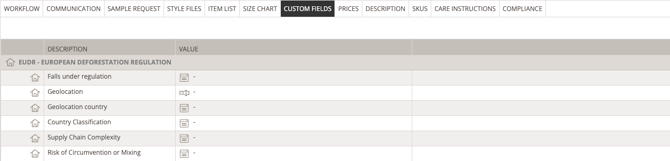
Navigate to: Admin > Custom Fields
- Create 'EUDR - European Deforestation Regulation' divider
- Click 'Add Custom Field'
- Select 'Divider' as custom field type
- Insert name 'EUDR - European Deforestation Regulation'
- Set checkmark next to 'Internal'
- Click 'OK'
- Create 'Falls under regulation' as an allowed value custom field
- Click 'Add Custom Field'
- Select 'Allowed Values' as custom field type
- Insert name 'Falls under regulation'
- Set checkmark next to 'Internal'
- Insert values:
- 'Yes'
- 'No'
-
- Click 'OK'
- Create 'Geolocation' as a numeric custom field
- Click 'Add Custom Field'
- Select 'Text' as custom field type
- Insert name 'Geolocation'
- Set checkmark next to 'Internal'
- Click 'OK'
- Create 'Geolocation country' as an allowed value custom field
- Click 'Add Custom Field'
- Select 'Allowed Values' as custom field type
- Insert name 'Geolocation country'
- Set checkmark next to 'Internal'
- Insert values:
- 'China'
- 'Turkey'
- 'Etc.'
-
- Click 'OK'
- Create 'Country Classification' as an allowed value custom field
- Click 'Add Custom Field'
- Select 'Allowed Values' as custom field type
- Insert name 'Country Classification'
- Set checkmark next to 'Internal'
- Insert values:
- 'Low'
- 'Standard'
- 'High'
-
- Click 'OK'
- Create 'Supply Chain Complexity' as an allowed value custom field
- Click 'Add Custom Field'
- Select 'Allowed Values' as custom field type
- Insert name 'Supply Chain Complexity'
- Set checkmark next to 'Internal'
- Insert values:
- 'Low complexity'
- 'Standard complexity'
- 'High complexity'
-
- Click 'OK'
- Create 'Risk of Circumvention or Mixing' as an allowed value custom field
- Click 'Add Custom Field'
- Select 'Allowed Values' as custom field type
- Insert name 'Risk of Circumvention or Mixing'
- Set checkmark next to 'Internal'
- Insert values:
- 'No risk'
- ' Risk'
-
- Click 'OK'
Tag your style if it falls under the legislation
Secondly, after setting up the required custom fields, you can view the EUDR data points information on the style page.
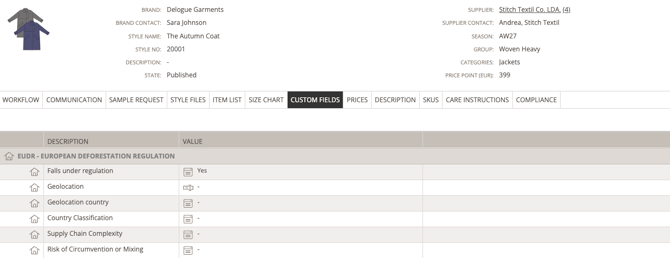
Here you can indicate whether the style contains any of the following, soy, palm oil, cocoa, coffee, wood, rubber, or cattle, and therefore falls under the regulation. If 'yes' do the following steps:
Navigate to: Styles > Custom Fields > EUDR - European Deforestation Regulation
- Click the custom field 'Falls under regulation'
- Select 'Yes'
EUDR style custom report setup
Thirdly, you create a style custom report to filter on your collection and to fill in data from the overview of styles.
Navigate to: Report > Style Custom Report
- Click the yellow 'star' icon to create a new report
- Type a report name 'EUDR - Compliance'
- Select the brand and season you want to filter on
- Select Custom fields > Falls under regulation > Yes
- Click 'Save'
- Click on 'Columns' to add additional columns to the report
- We suggest the following selection of columns:
- Season, Style Logo, Brand, Style Name, Style Number
- Main Item Name, Main Item Composition, Falls under regulation
- Geolocation, Geolocation country, Country Classification
- Supply Chain Complexity, Risk of Circumvention or Mixing
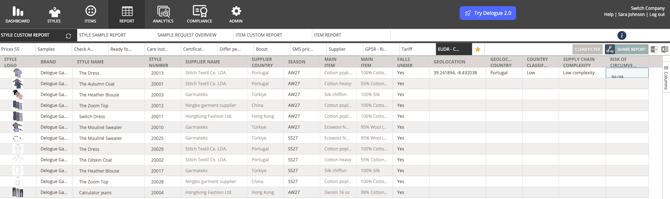
Fourthly, you can fill in the information on your style overview. The data will be mirrored on the individual style under the Custom Field subtab. You can also export the style custom report as a source for proof. Here you can select the tab ‘one row per style certificate’, allowing you to combine it with your scope and transaction certificates (your chain of custody)